

How it works
- Add a photo of the room. Stand in a corner and fit in as much of the room as you can. No photo handy? Start with a sample room, or pick a design you made earlier.
- Pick the room type. Living room, bedroom, kitchen, bathroom and more. There is no wish to type: the tool is built to take out everything that can be moved and to leave the rest.
- See the empty room. Compare before and after with the slider. If something stayed behind, run it again. Or keep going with another tool: furnish the room in a new style, repaint the walls or change the floor.
Examples: furnished rooms, emptied
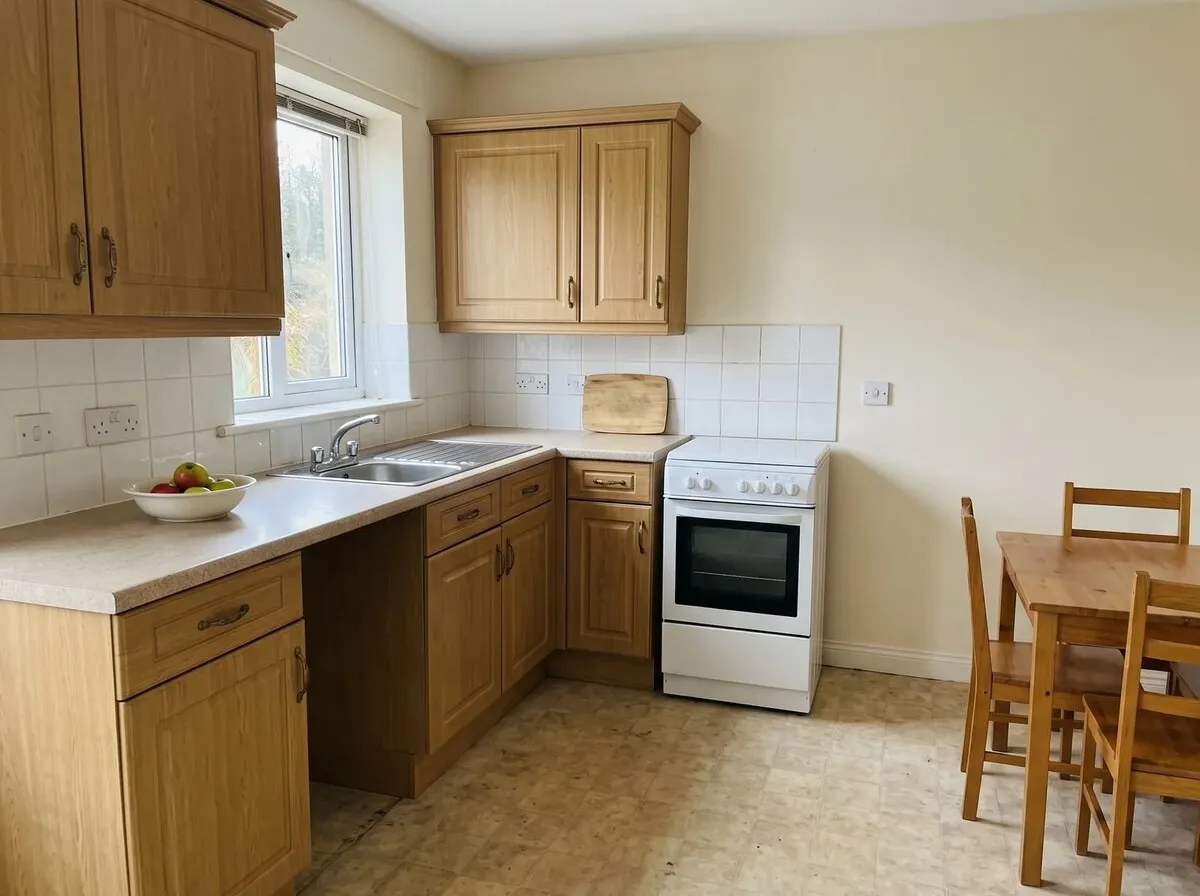
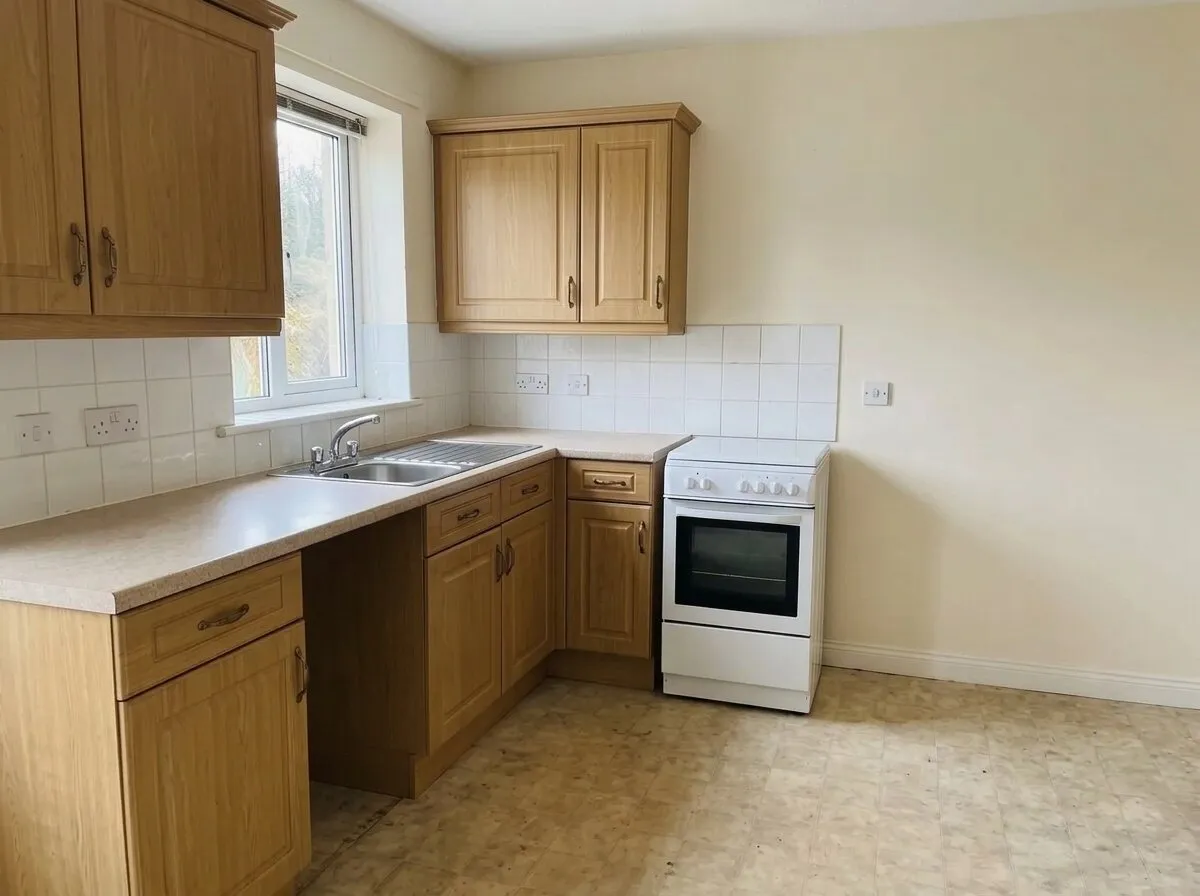
Remove furniture: the table, chairs and worktop items went; the cabinets, cooker, sink and window blind stayed.
Before: an AI-generated sample room from the app. After: the result from roomvia.
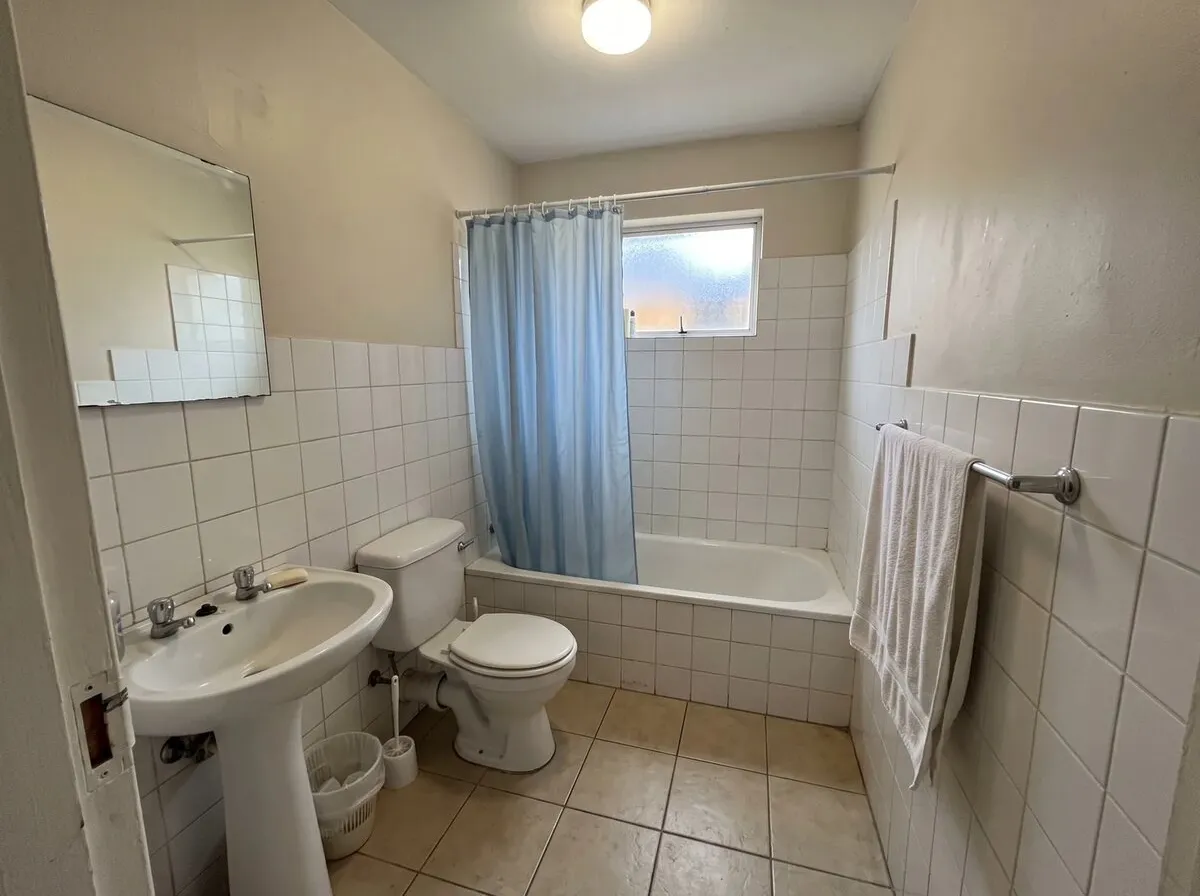
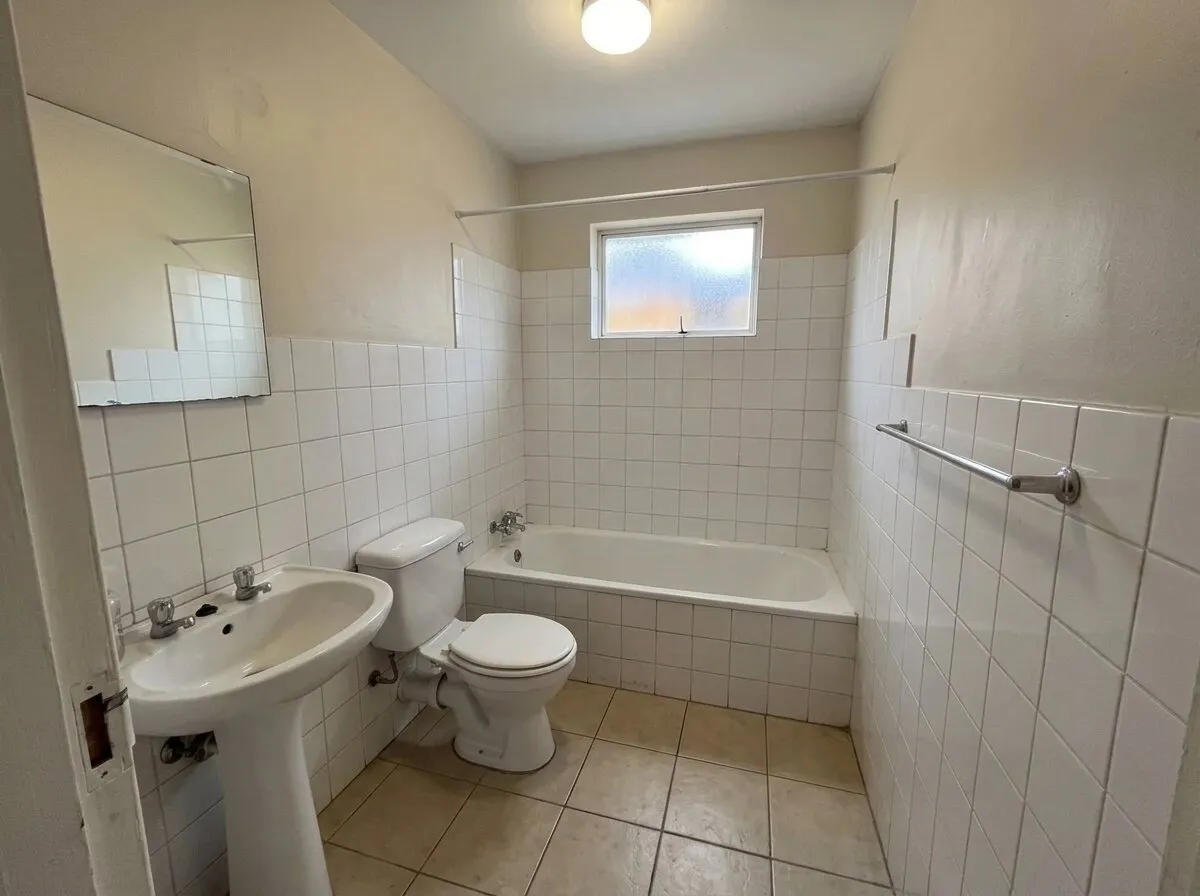
Remove furniture: the shower curtain, towel, bin and toilet brush went; the basin, toilet, bath, mirror and rails stayed.
Before: an AI-generated sample room from the app. After: the result from roomvia.
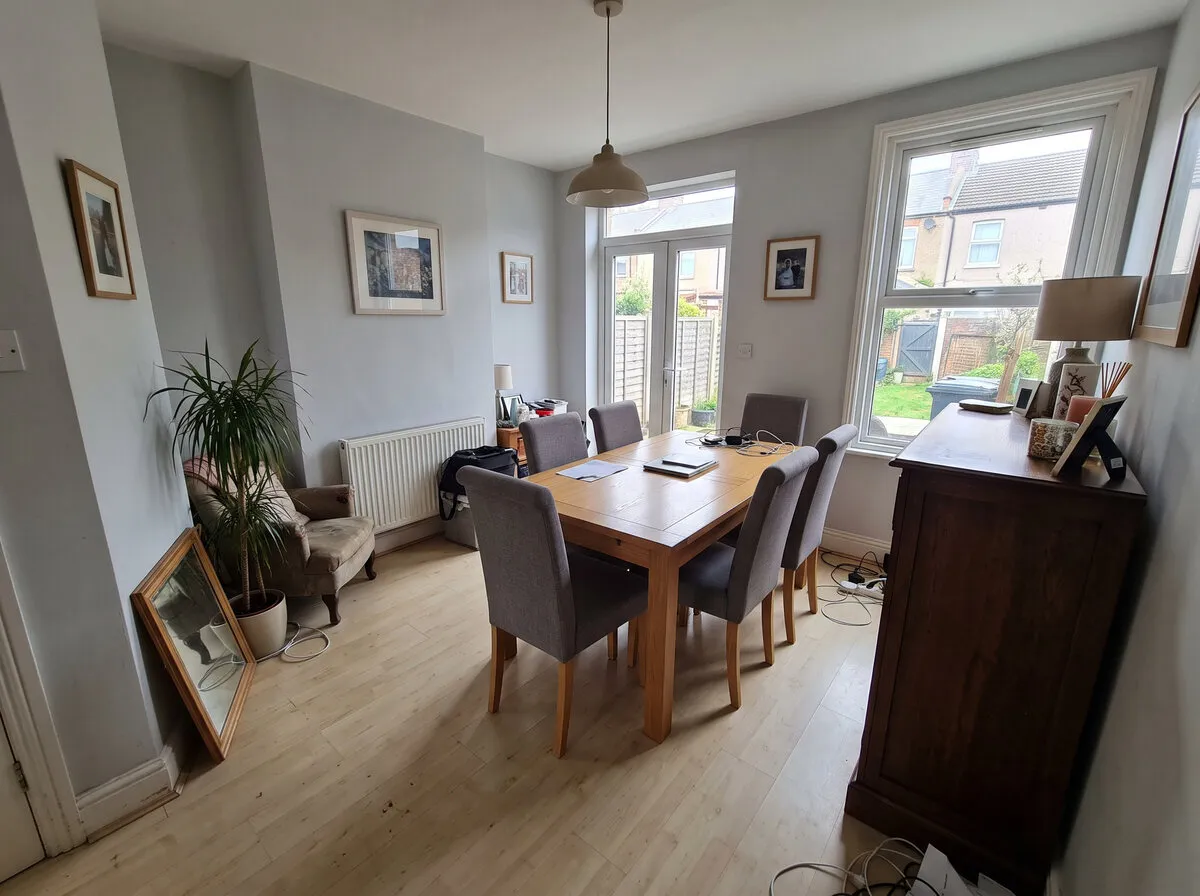
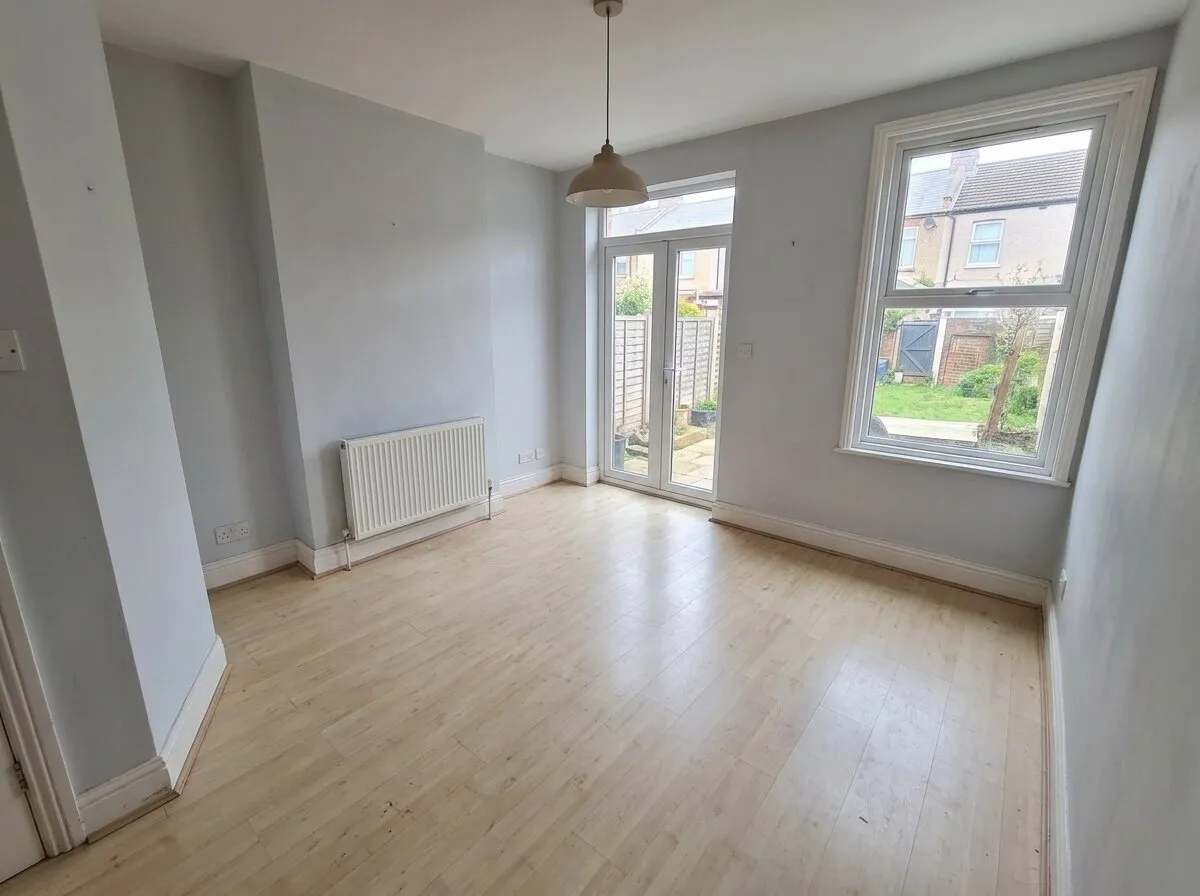
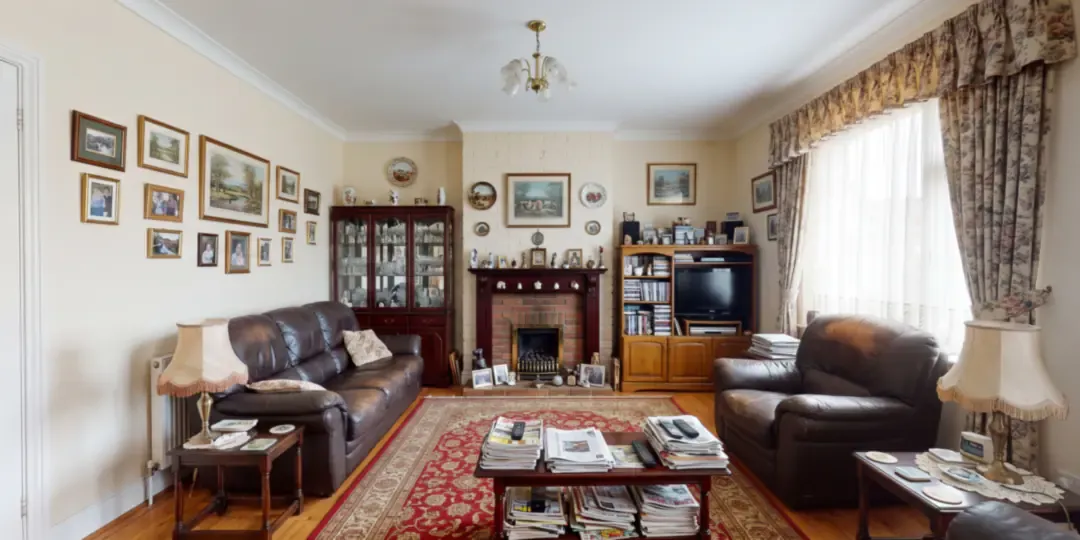
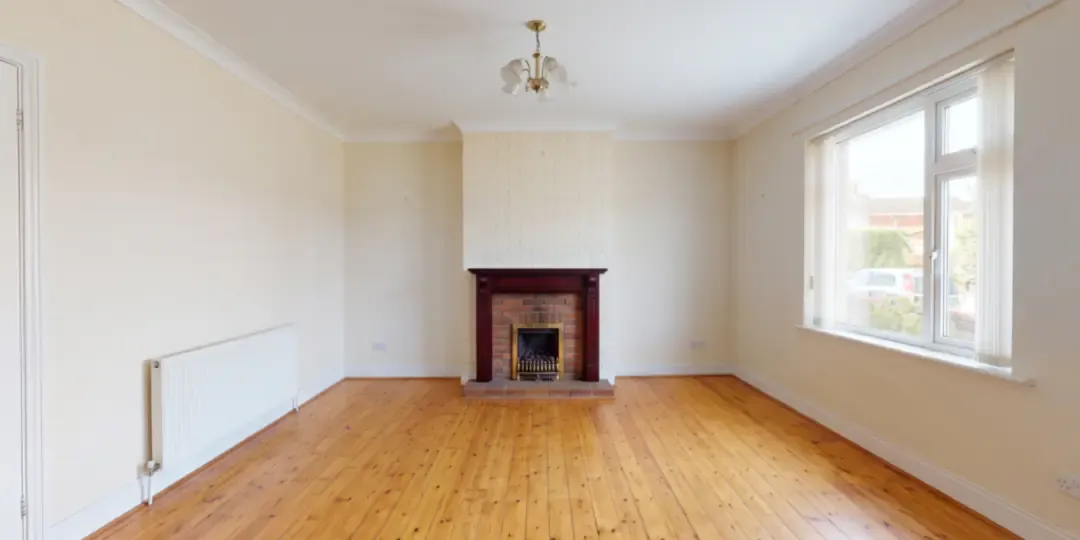
Remove furniture: the table, chairs, cabinet, armchair, plant, mirror and pictures went; the radiator, French doors, window and pendant light stayed.
Before: an AI-generated sample room. After: the result from roomvia.
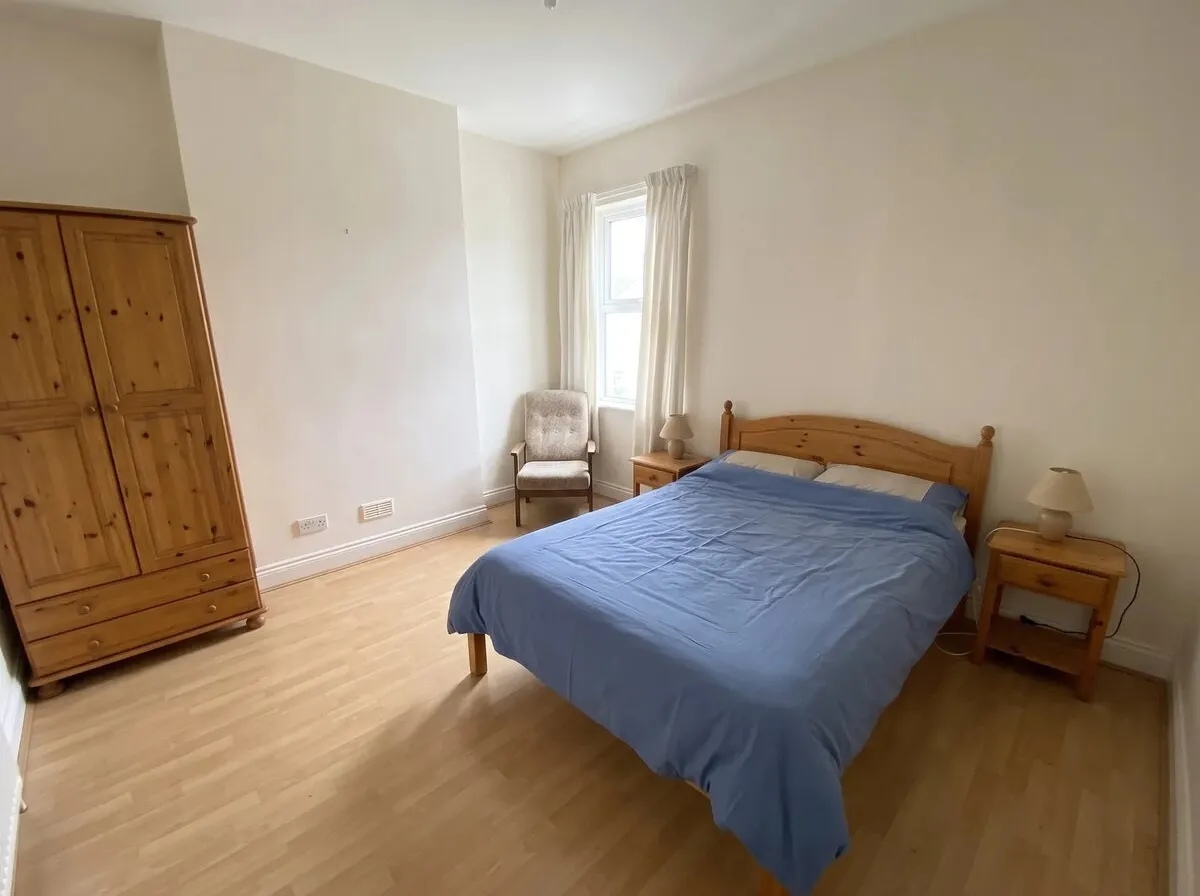
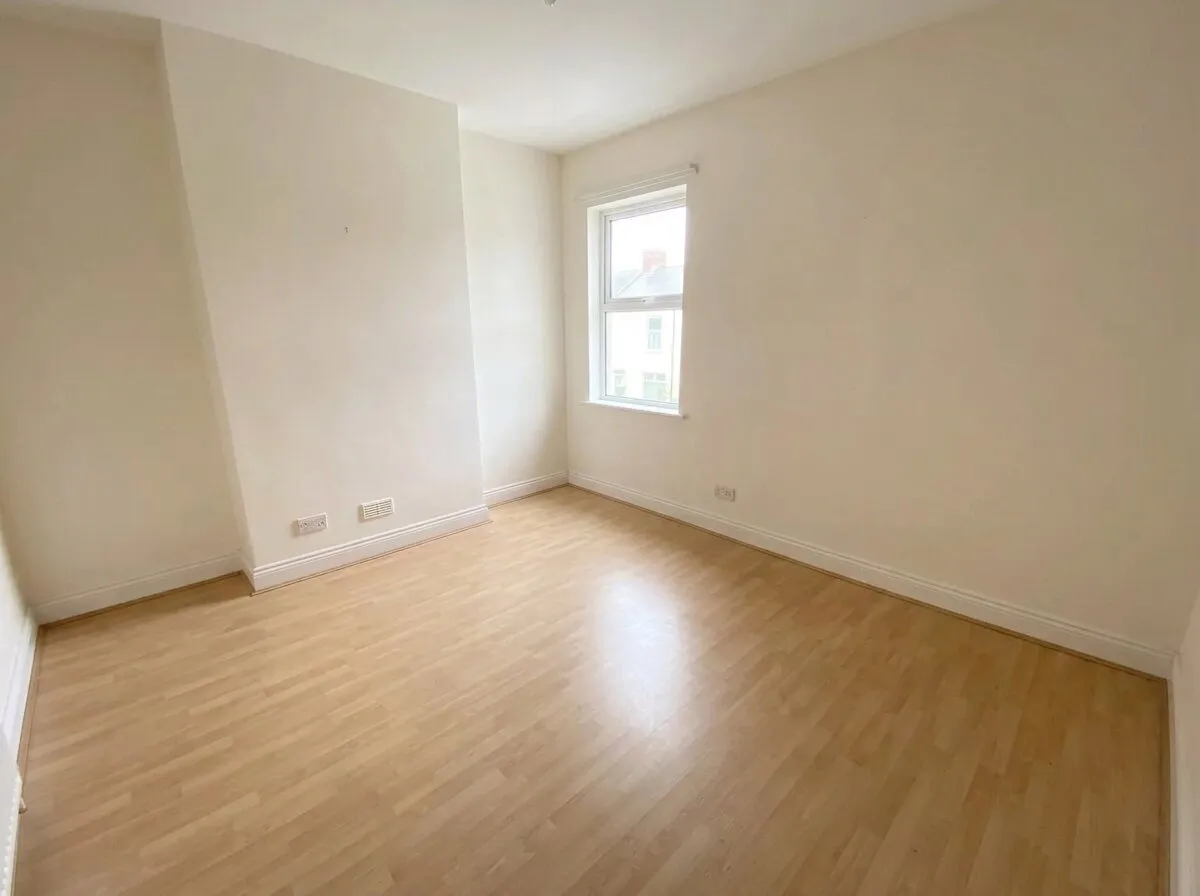
Remove furniture: the bed, wardrobe, armchair, bedside tables and curtains went; the window, chimney breast and sockets stayed.
Before: an AI-generated sample room from the app. After: the result from roomvia.
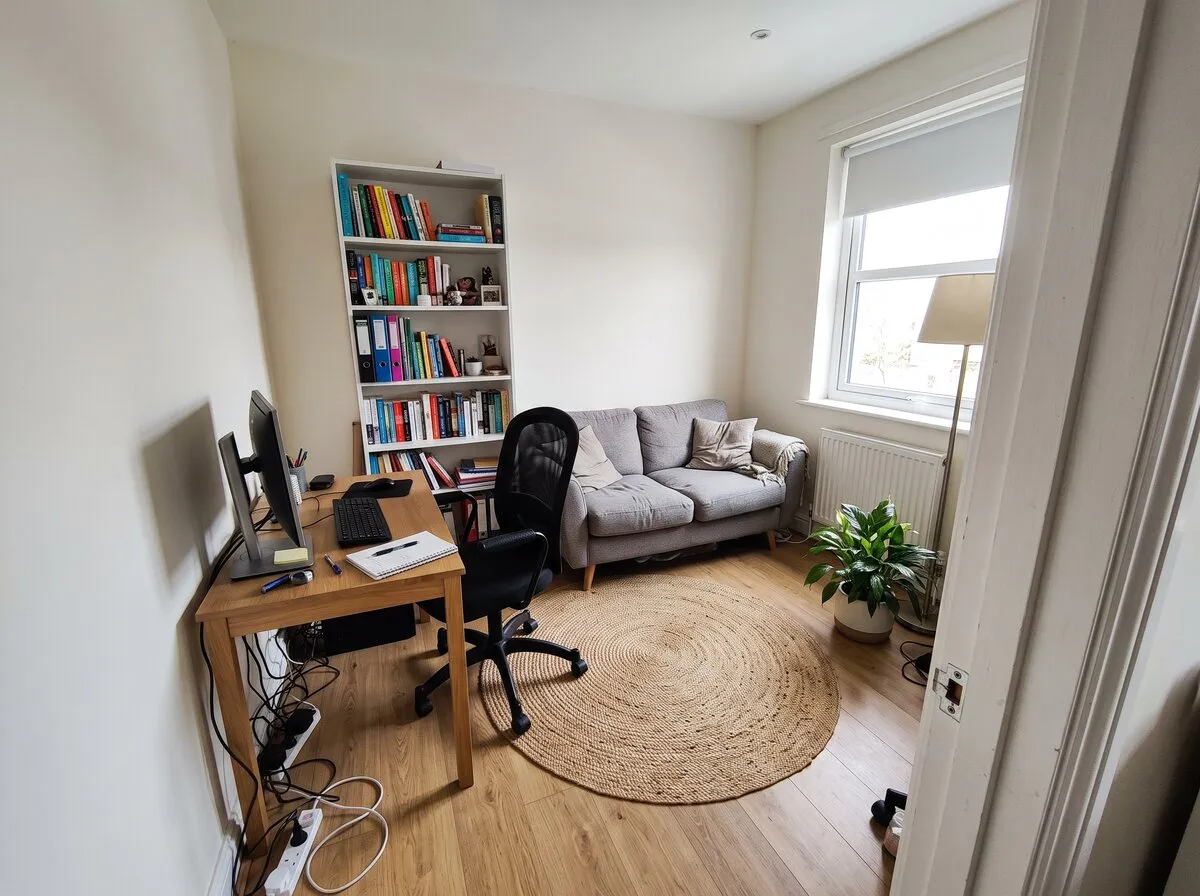
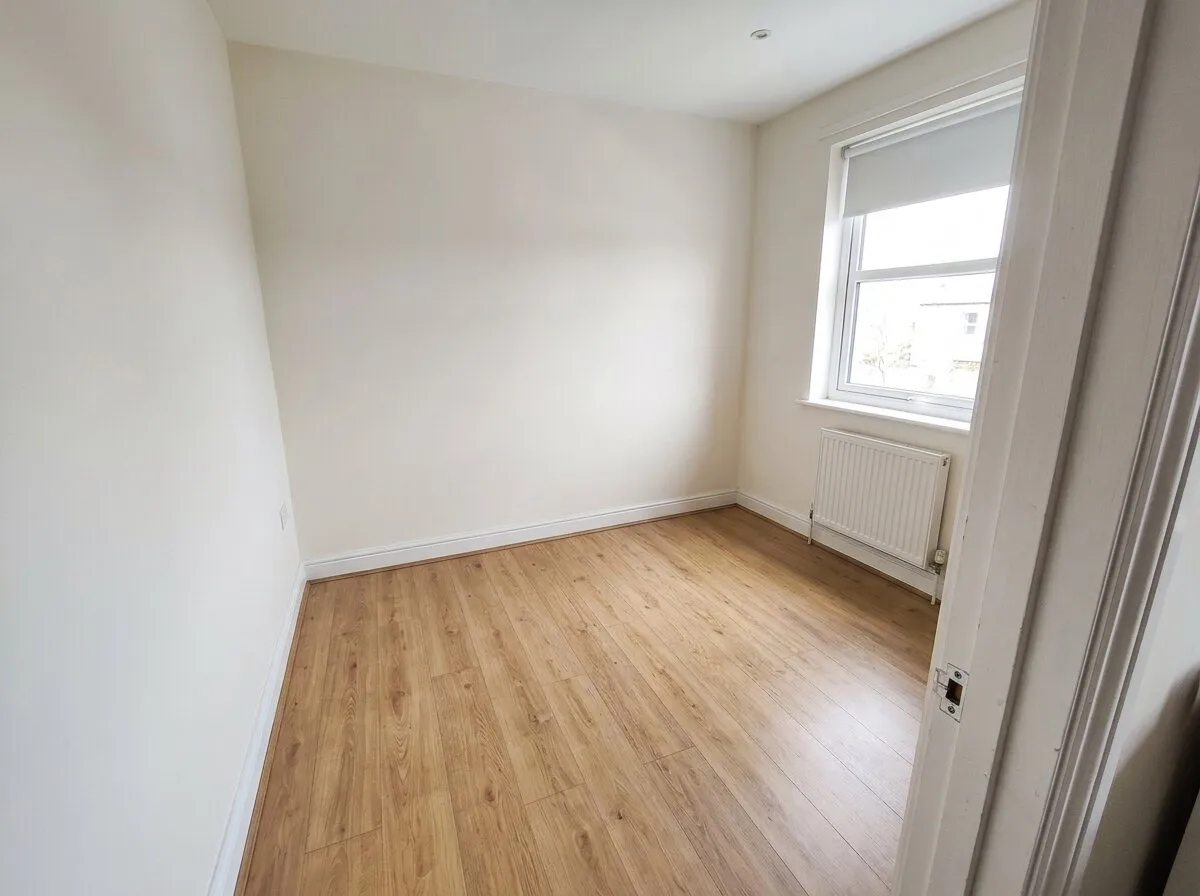
Remove furniture: the desk, chair, bookcase, sofa, rug, lamp and plant went; the window blind, radiator and door frame stayed.
Before: an AI-generated sample room. After: the result from roomvia.
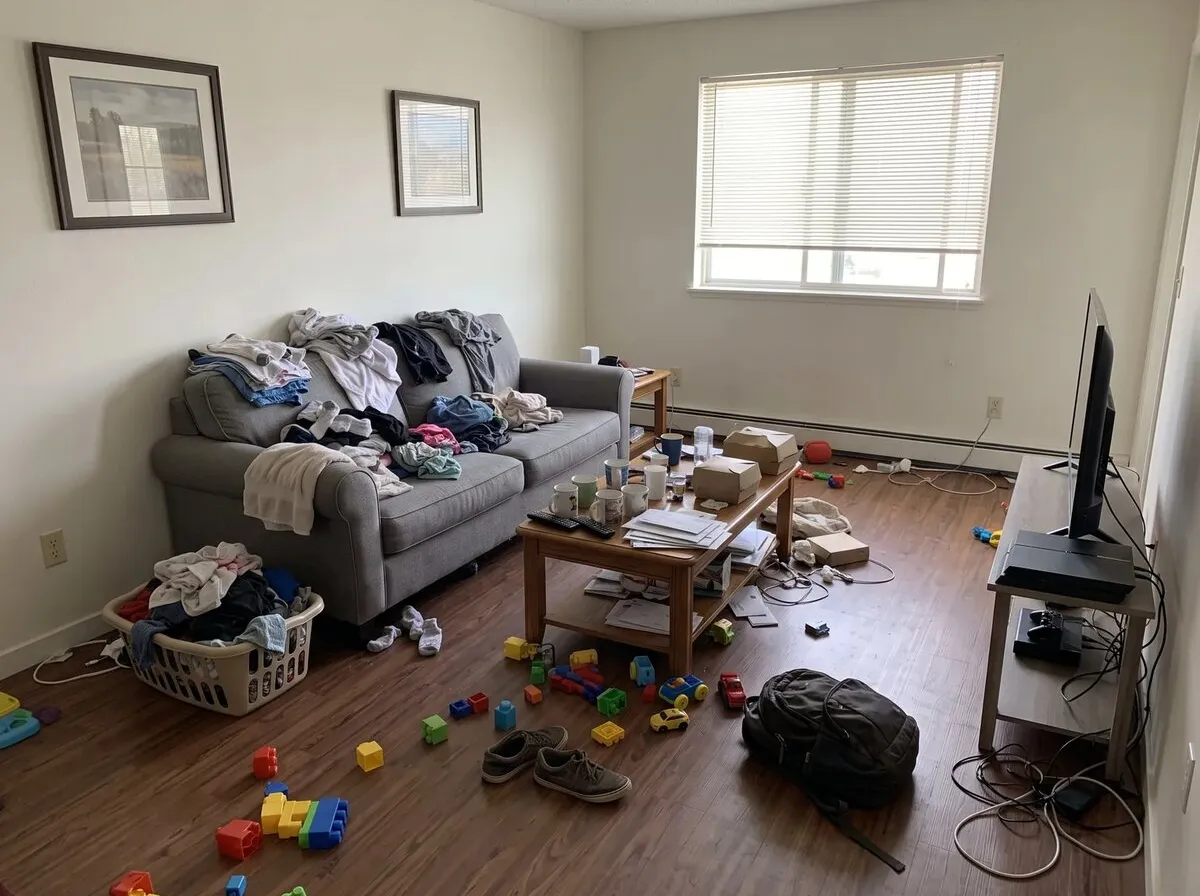
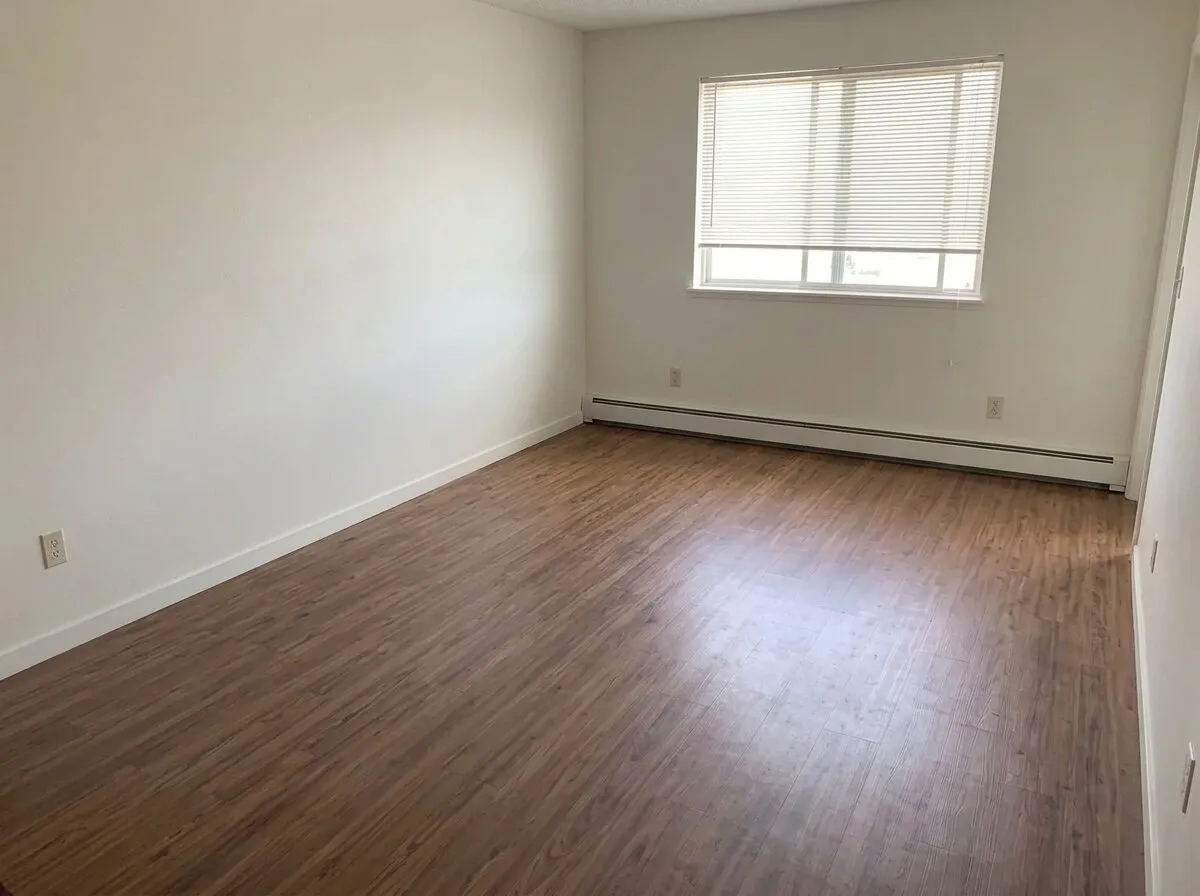
Remove furniture: the sofa, tables, TV stand, pictures and every toy, box and cable went; the blinds and baseboard heater stayed.
Before: an AI-generated sample room from the app. After: the result from roomvia.
Tips for better results
- Show the whole room. The tool can only empty what the photo shows. A wide shot from a corner, with the phone held straight, works well.
- Turn on the lights. Open the blinds too. The tool is built to fill in the floor and walls where furniture stood, and a bright, sharp photo gives it more to match.
- No need to tidy first. Boxes, cables, towels and other small things are meant to go with the furniture.
- Pick the right tool. To take out one object, use Brush erase. To clear the clutter but leave the furniture, use Auto declutter.
- Run it again on the result. If a lamp or a picture is still there, run Remove furniture on the new design. Each run gives one result.
- Measure before you plan. The picture doesn’t know your room’s size. Measure the walls, windows and doorways before you buy anything for the empty room.
What it can’t do
- It can leave or miss a small item. A cable, a plant or a picture can stay behind. Look at the corners and the walls, and run it again if something is left.
- It can take out a fixture. A fixed mirror, like a bathroom mirror, can vanish with the furniture. If you want it in the picture, run it again.
- Check the built-ins. Kitchen cabinets, bathroom fixtures, built-in closets, radiators, the fireplace and the stairs are meant to stay put. So are windows and doors. If one of them moved or changed, the design isn’t your room. Run it again.
- It fills in what it can’t see. The photo doesn’t show the floor under the sofa or the wall behind the wardrobe. The tool is built to fill them in to match the rest, so a stain, a crack or a different floor there won’t show.
- It can’t measure. An empty room can look bigger or smaller in a picture than it is. Measure walls, walkways and door swings before you plan.
- It doesn’t add furniture. To fill the empty room, use Furnish empty room on the new design.
- Results vary. Two runs on the same photo can give two different results.
- It’s a picture, not a floor plan.
Questions
What does it remove?
It is built to take out the furniture and everything that can be moved: sofas, armchairs, chairs, tables, beds, dressers, desks, freestanding cabinets, shelves and wardrobes, rugs, lamps, curtains, cushions, plants, the TV and its stand, pictures and mirrors hung as decor, and small things like boxes, towels and cables.
What stays?
The tool is built to keep everything built into the room: the walls, ceiling, floor and baseboards, windows, doors, radiators, outlets, ceiling lights, fireplaces, kitchen cabinets, bathroom fixtures and their fixed mirrors, and the other built-in parts of the room. It is also built to keep the camera angle. Check the result. If something moved, run it again.
Can I keep some of the furniture?
Not with this tool: it is built to empty the whole room. To take out one object, brush over it with Brush erase. To clear the clutter and leave the furniture, use Auto declutter.
Which rooms does it work for?
Rooms inside your home: living rooms, bedrooms, kitchens, bathrooms, home offices, dining rooms and more. You pick the room type before you start.
Can I furnish the empty room afterwards?
Yes. Every tool also works on an earlier design. Open the empty room in Furnish empty room, pick the room type and a style, and roomvia adds furniture and decor. You can repaint the walls or change the floor first, too.
Can I use it for a property listing?
You can, but be clear about what the photo shows. An emptied photo leaves out things that are in the room today, and the floor and walls where furniture stood are filled in by the tool. You may need to say the photo was digitally altered and show the original photo as well. In California, for example, real estate licensees, and people acting for them, must put a reasonably conspicuous statement on or next to a digitally altered image in every ad for a sale, with a link, URL or QR code to the unaltered photo and words saying it can be seen there. Free designs carry a roomvia watermark, and some MLSs, such as San Diego MLS, ARMLS and Stellar MLS, don’t allow branding or extra text on listing photos. Our free virtual staging disclaimer label tool adds the statement and your link or QR code to photos for ads, and gives you clean copies and field text for the MLS, in your browser. More in Virtual staging disclosure: California AB 723 and MLS rules. Check your local rules and your MLS before you post. This is not legal advice.
Is it free?
No sign-up is needed to start. New accounts may get a few free designs, which carry a watermark. Plans and prices are shown in the app before you buy.
What happens to my photo?
Before your first design, the app names the AI providers that process your photo and asks for your OK. Photos and designs are deleted 90 days after a design is made; reusing a design keeps it longer. There is no public feed.
Can I use it on my computer?
No. roomvia runs on iPhone and Android. There is no web editor today.