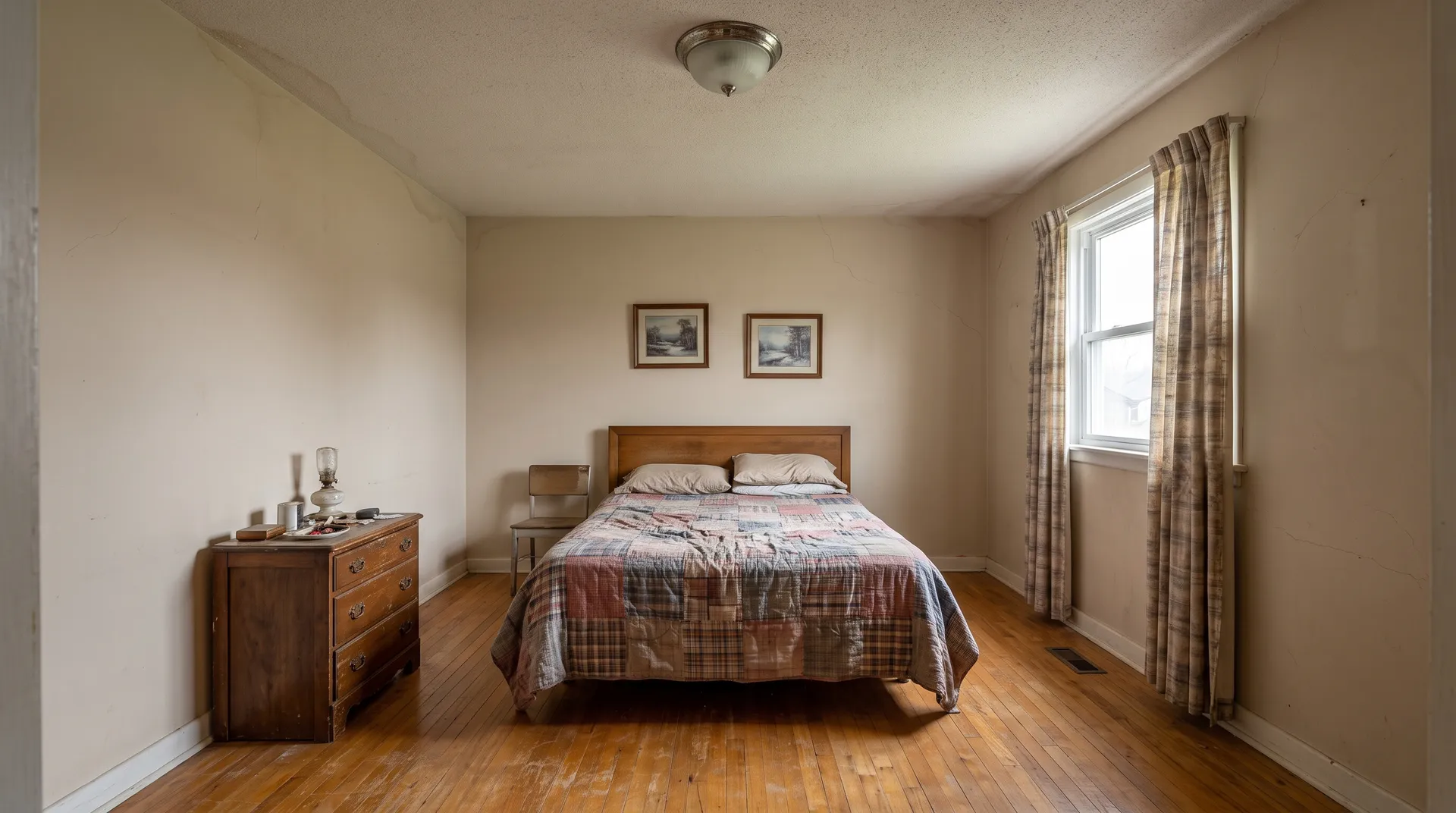
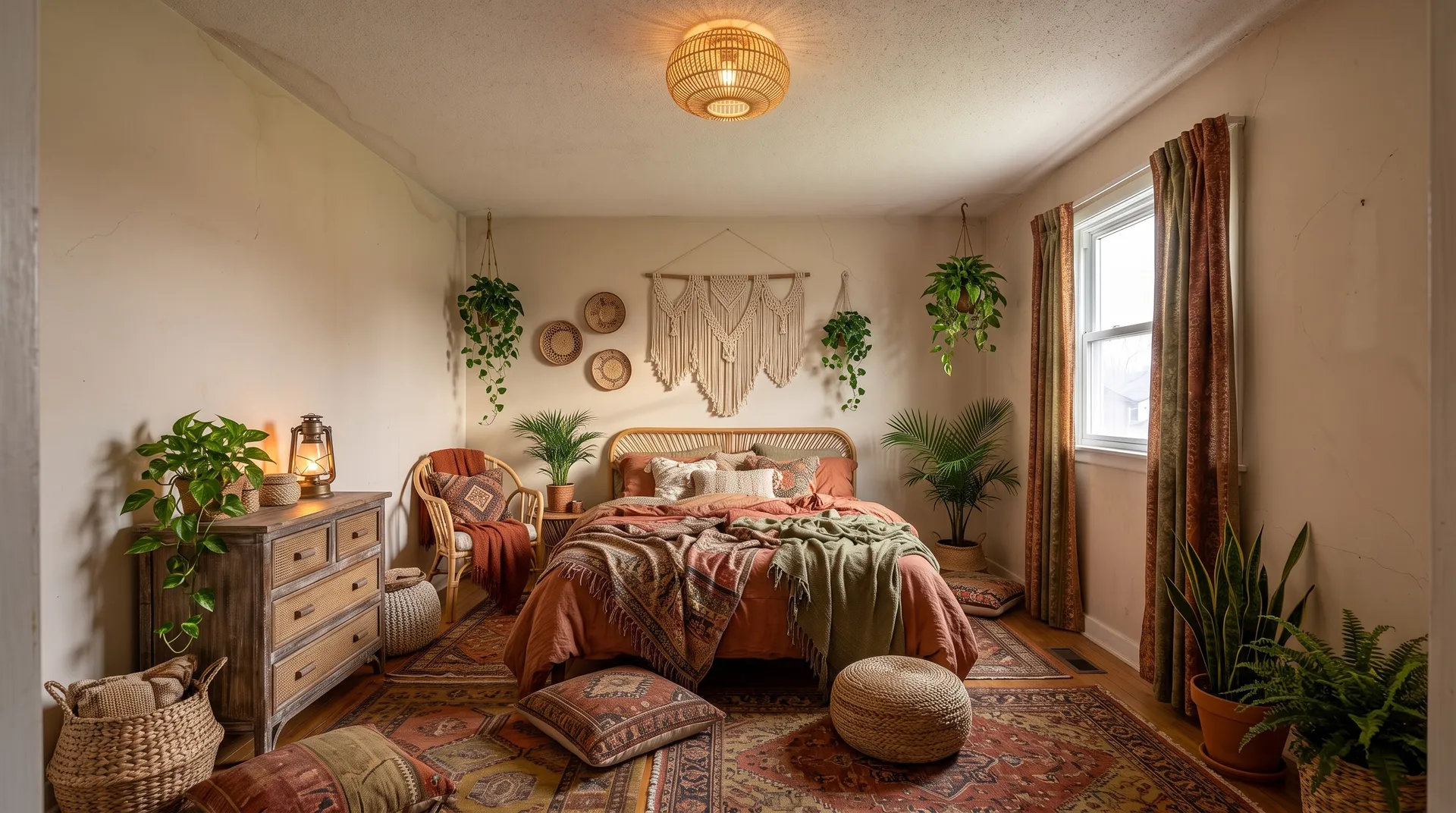
Restyled in Bohemian with Keep mode: new furniture, textiles and plants; the walls, window and ceiling stay.
Before: an AI-generated sample room. After: the result from roomvia.
Before you start: one photo, three requests
- Take one photo of a room you know well. Stand in a corner, hold the phone level, and include a window and a door. Use daylight.
- Use the same photo in every app you try.
- Ask each app for three things:
- a new style for the room;
- one small change in your own words, like “paint the cabinets navy blue”;
- the job you actually need: empty the room, furnish it, move the furniture or clear the clutter.
- Save every result and look at them side by side.
The 10 things to check
1. Does it keep your room?
Look at the windows, doors, radiators, ceiling and camera angle. If the window moved, the design is not your room anymore. Some apps have one mode that keeps the structure and another that lets the layout change. Find out which one runs by default.
2. Does it do the job you need?
“Redesign” covers very different jobs. Check that the app has the one you need:
| Job | A good result | Watch for |
|---|---|---|
| New style | Your room, new furniture and finishes | Moved windows, a different room shape |
| Furnish an empty room | Furniture at a believable size | Pieces floating or blocking doors |
| Empty a furnished room | Bare floor and walls, built-ins kept | Missing fireplaces, radiators, sockets |
| Move your own furniture | The same pieces, in new places | New pieces appearing, things facing the wall |
| Clear clutter | Same furniture, tidy surfaces | Furniture removed with the clutter |
| Walls and floors | Only walls or floor change | Furniture changing color too |
| House front or garden | Same house, same yard shape | Extra windows, a different roofline |
| Typed requests | Exactly the change you asked for | Other things changing as well |
3. How much control do you get?
Count the styles, but also check the controls: can you type a request, brush an area to change, or refine a result step by step instead of starting over?
4. What is actually free?
Read the free tier closely. How many free designs? Do they expire? Do they carry a watermark? Do you need to sign up first? If you pay later, does the watermark come off your earlier designs too?
5. How do you pay, and how do you cancel?
Apps sell weekly plans, yearly plans, monthly plans or packs of credits. Check the price and length on the screen before you confirm. In the App Store, a free trial turns into a paid plan unless you cancel at least 24 hours before it ends; Google Play shows its own trial terms at checkout. You cancel in your Apple Account or Google Play settings; deleting the app does not cancel.
6. What happens to your photo?
Photos of your home are personal. Check whether the app tells you who processes your photo, how long it keeps photos and designs, whether there is a public feed or gallery, and whether you can delete your account. Read the privacy policy for how your images may be used.
7. What do you get at the end?
Check the image size, whether there is an HD export, whether downloads carry a watermark, and whether you can compare before and after.
8. Speed and limits
“Fast” in an ad can mean “fast when the servers are quiet”. Look for free queues, busy-day slowdowns, daily caps and fair-use rules in the terms.
9. Where can you use it?
iPhone, Android, web, or all three? If you work on a computer, check that there is a web version, or at least an easy way to move to your phone.
10. Ads
Some free apps show ads between designs. Check before you commit to one.
If you are a real estate agent
California’s AB 723 has applied since 2026-01-01. Real estate licensees, and people acting for them, who use a digitally altered photo in any ad for a sale must put a statement on or next to the image, with a link, URL or QR code to the unaltered photo and words saying it can be seen there. Many MLSs have their own rules on virtual staging labels and on not changing permanent features. Check whether the app helps you label images and keep the originals; our free virtual staging disclaimer label tool adds a label and a link to the original to photos for ads, and gives you clean copies for the MLS, in your browser. Virtual staging disclosure: California AB 723 and MLS rules has the details. This is general information, not legal advice.
The same checks on roomvia’s own results
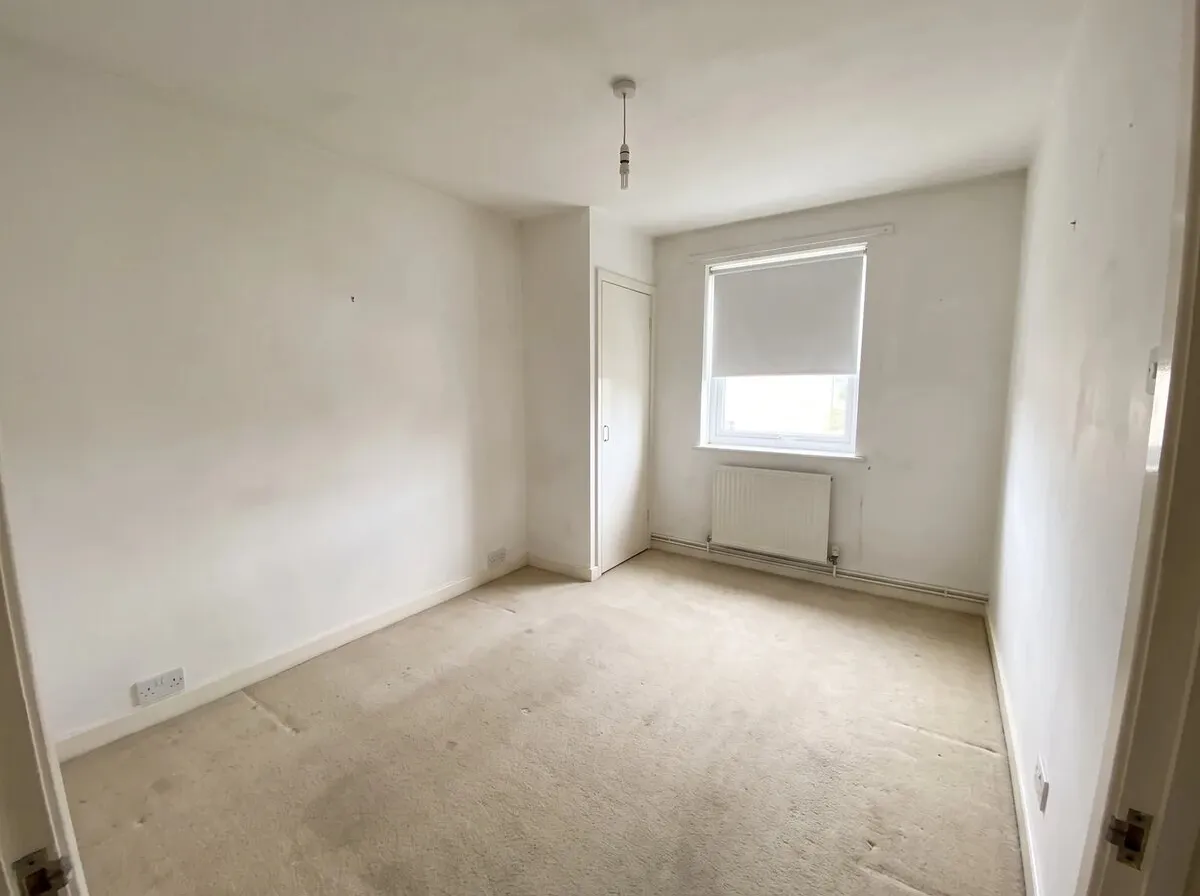
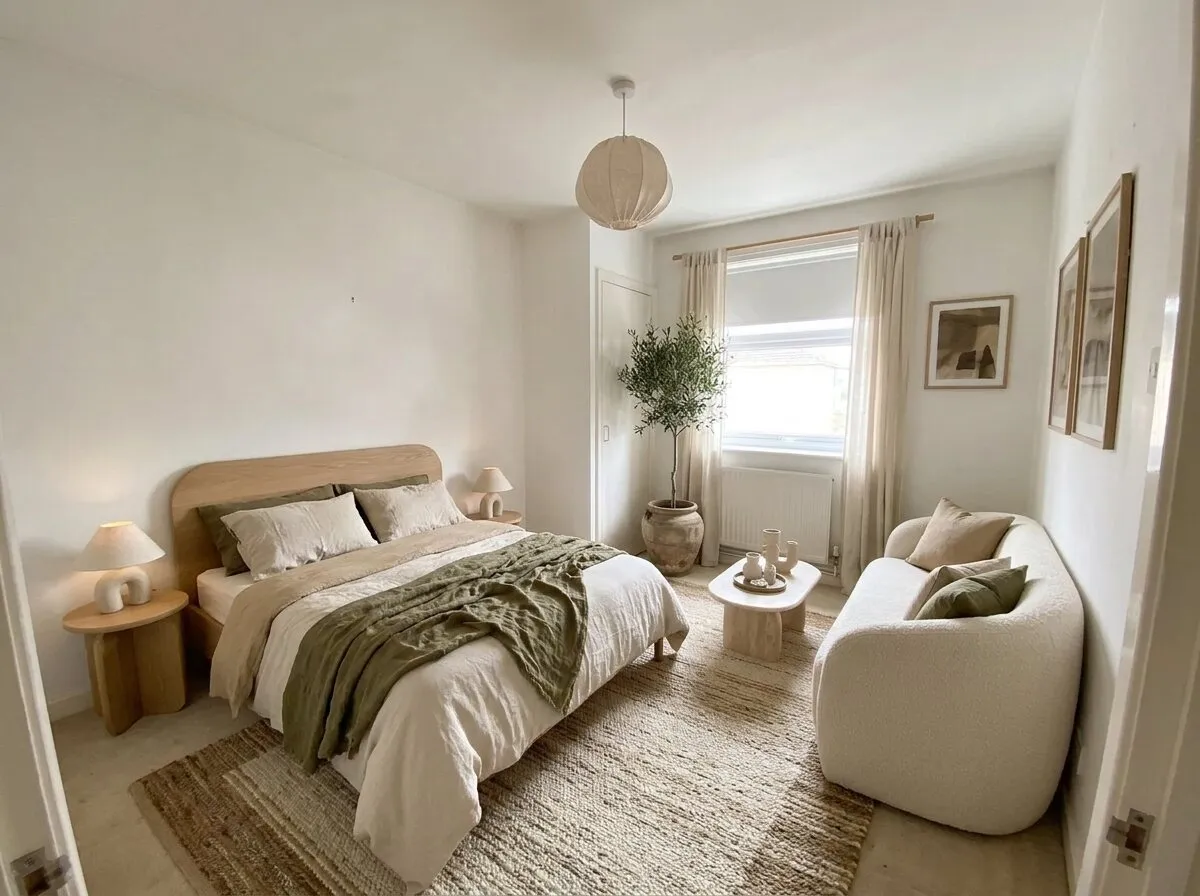
Furnish empty room, Organic modern style: furniture, rug, lighting and art added; walls, window and carpet kept.
Before: an AI-generated sample room from the app. After: the result from roomvia.
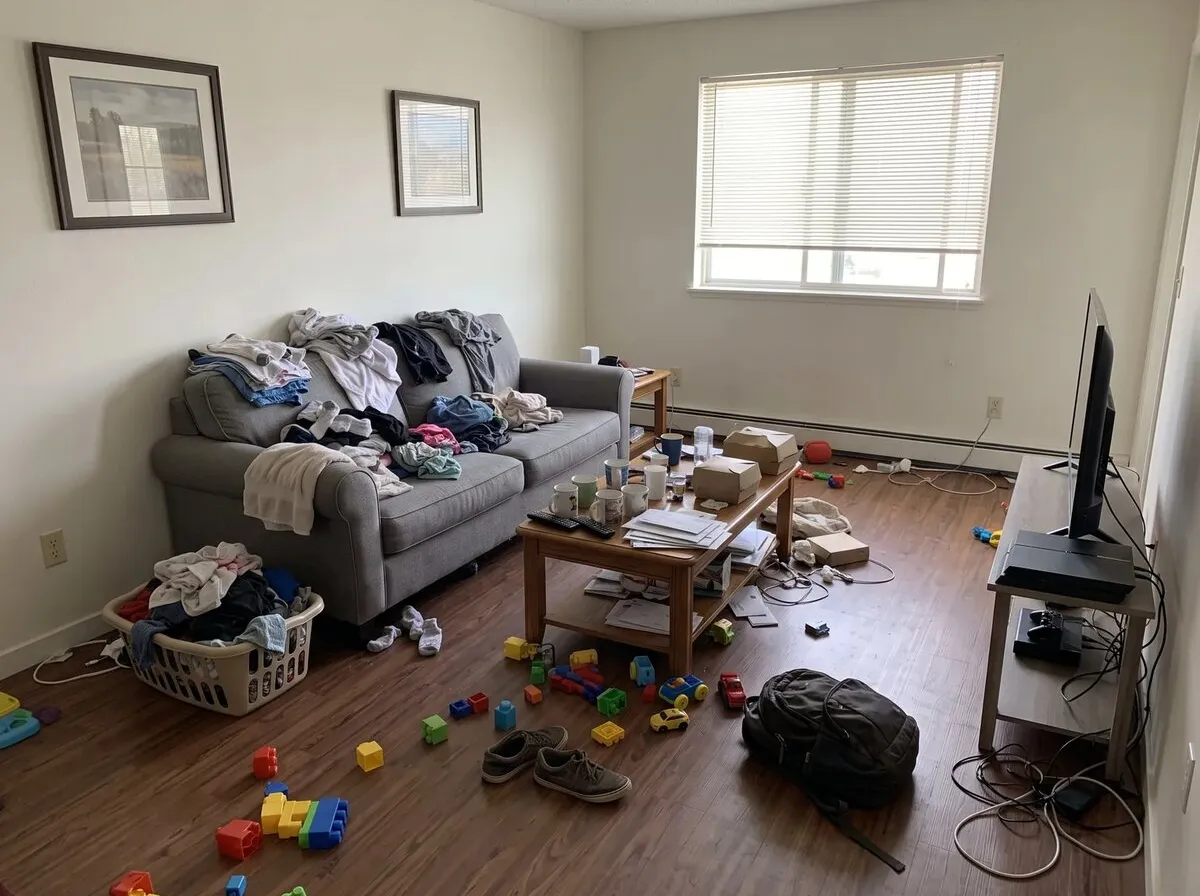
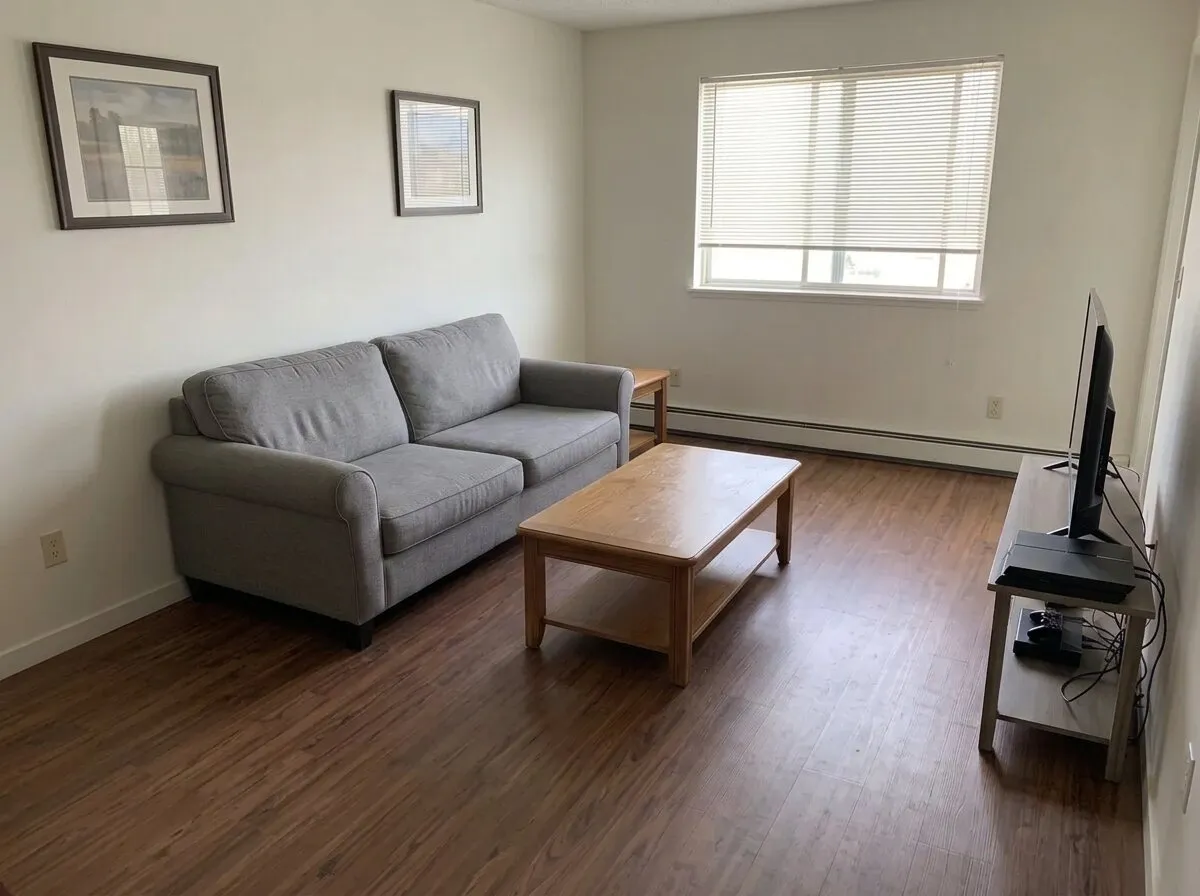
Auto declutter: the clothes, toys and boxes went; the sofa, coffee table and TV stand stayed where they were.
Before: an AI-generated sample room from the app. After: the result from roomvia.
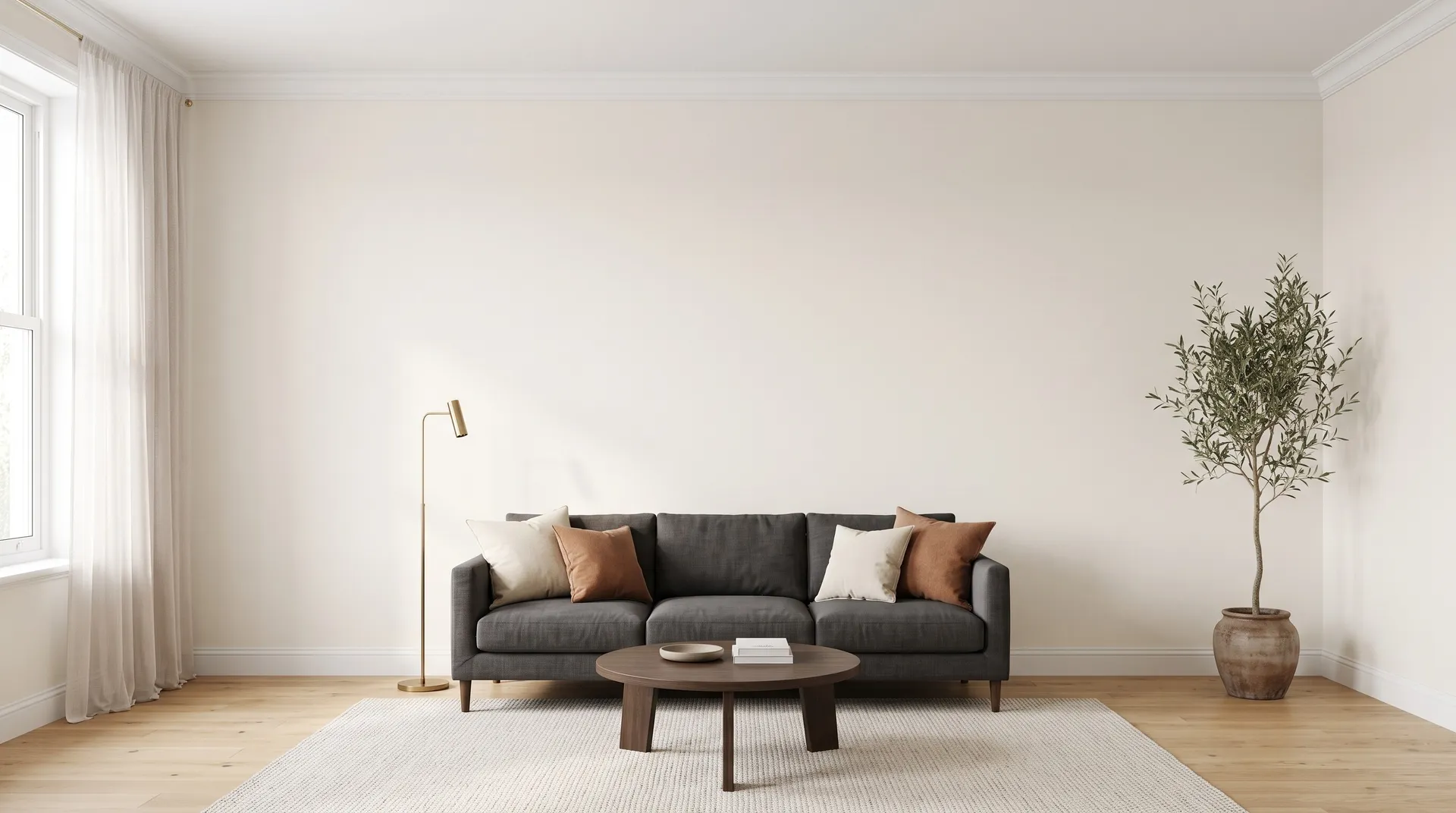
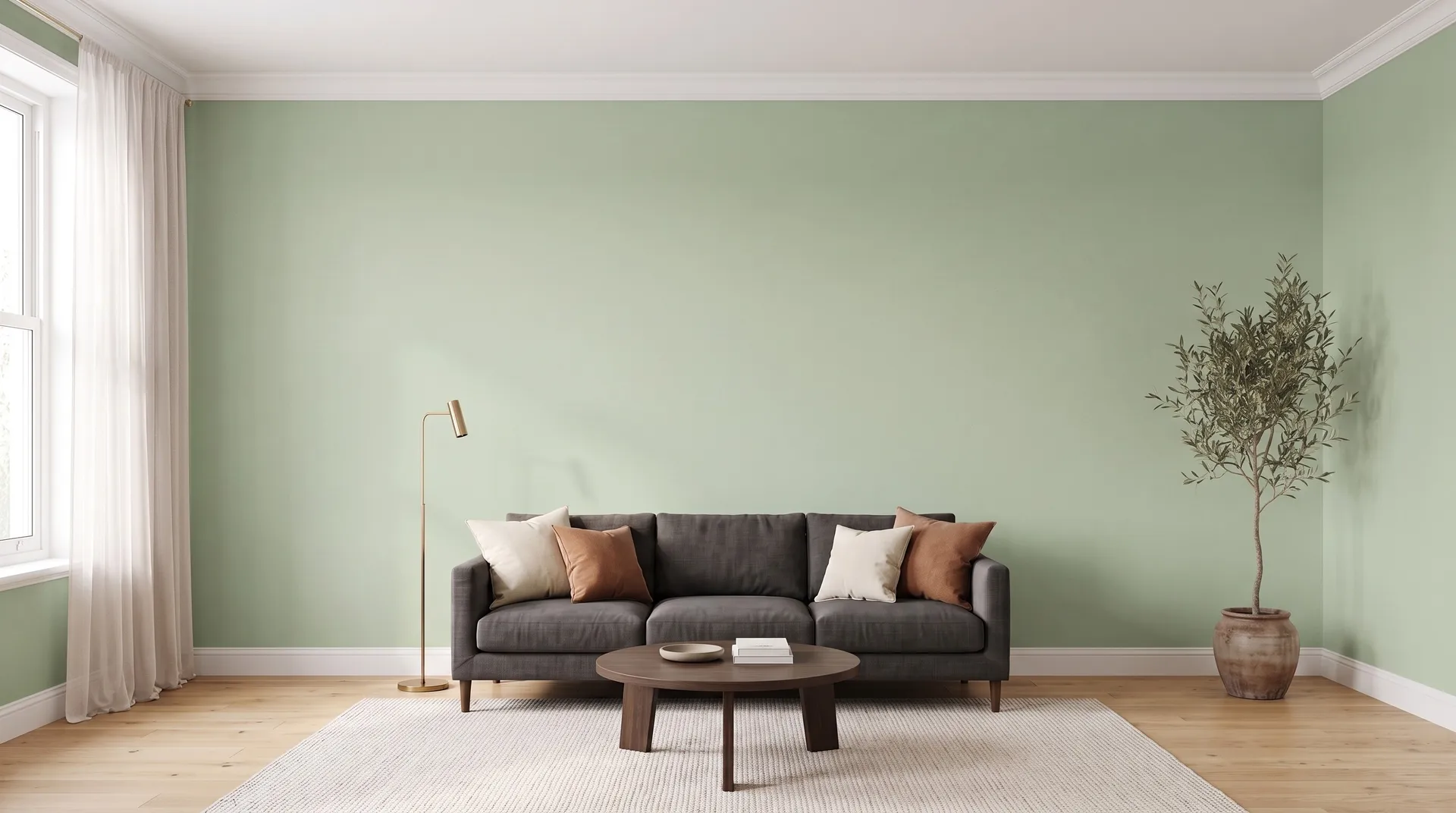
Walls, Sage green paint in a flat matte finish: only the walls changed.
Before: an AI-generated sample room. After: the result from roomvia.
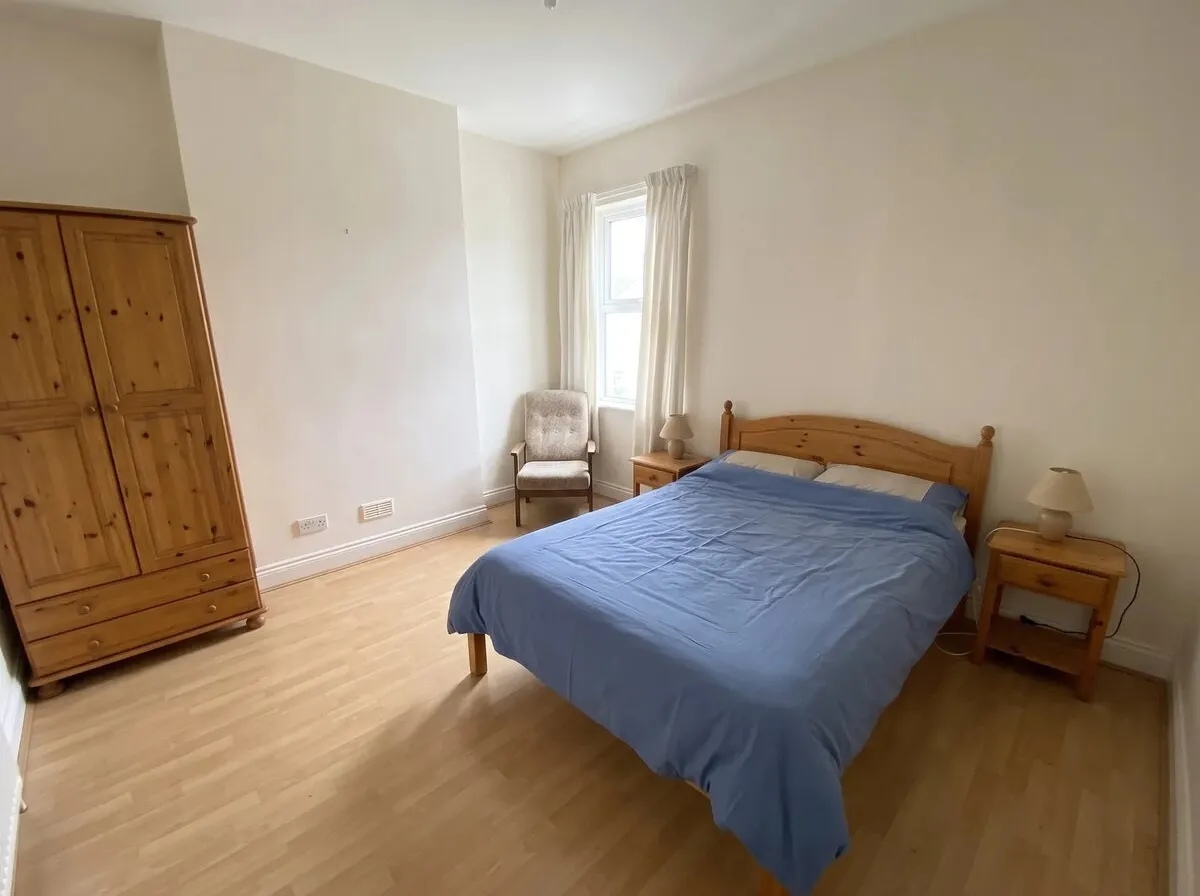
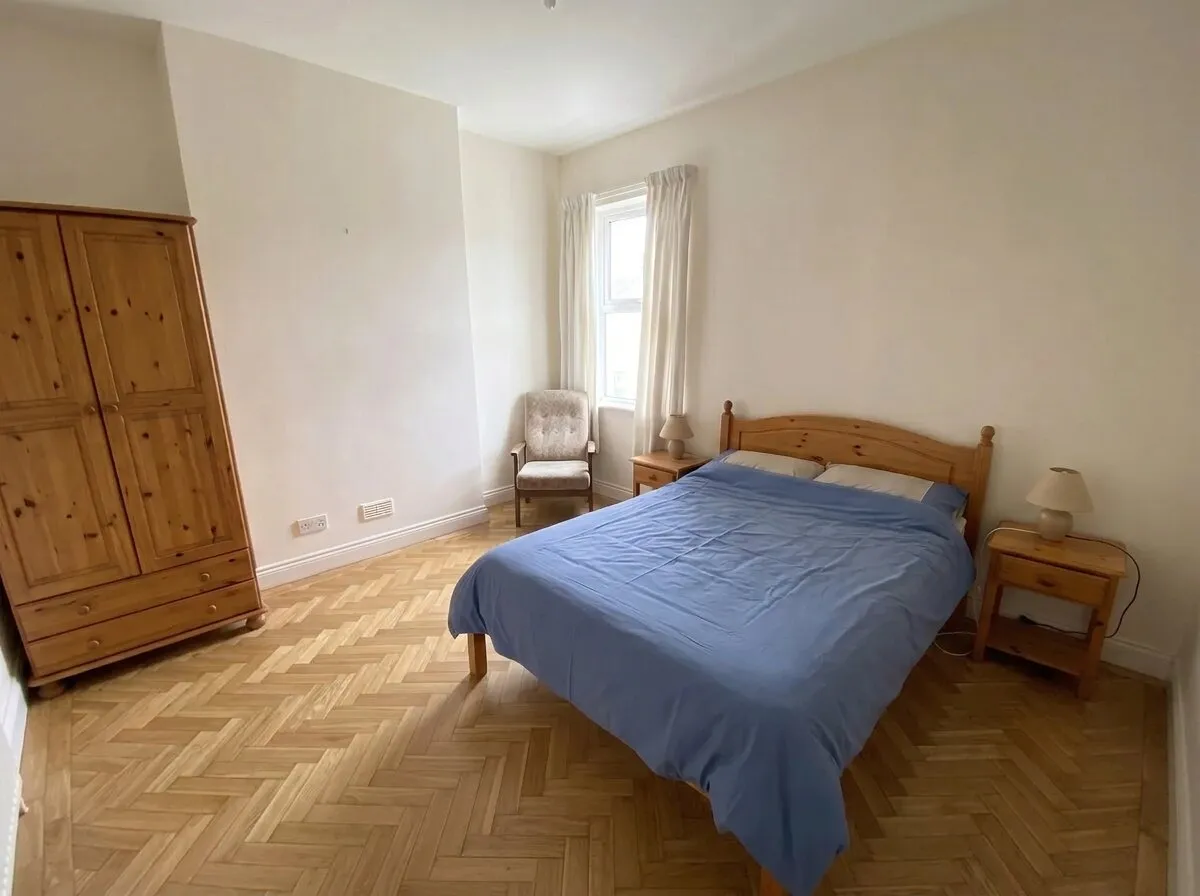
Floor, Herringbone oak: only the floor changed.
Before: an AI-generated sample room from the app. After: the result from roomvia.
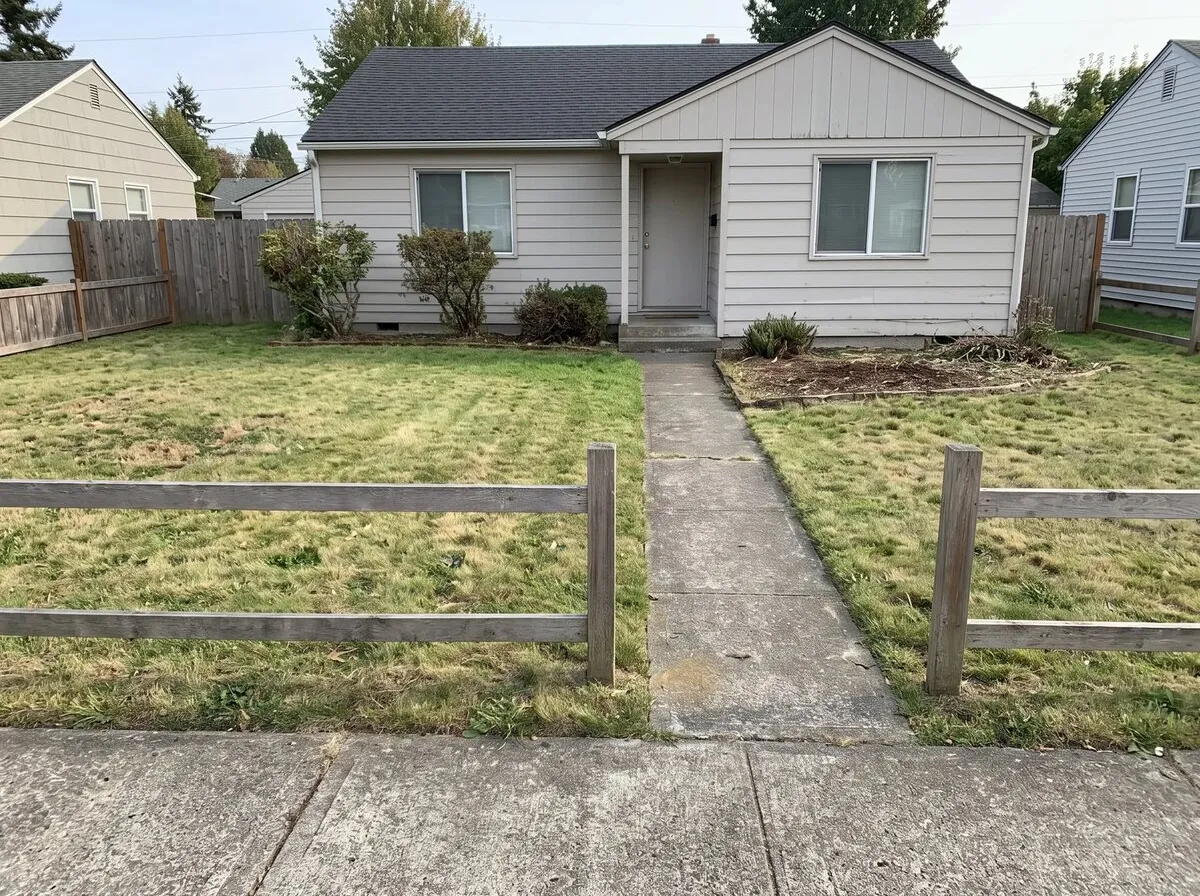
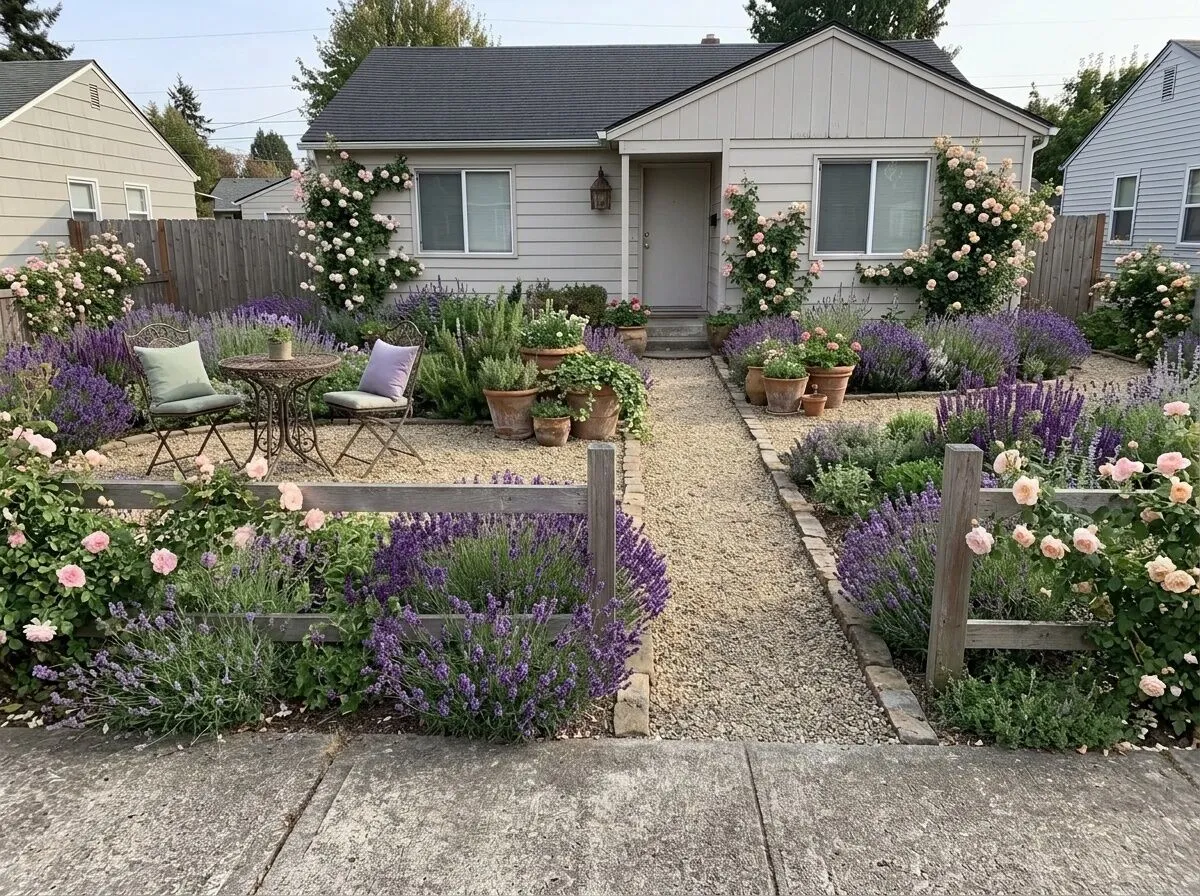
Garden, French country style with Keep mode: planting, gravel and a seating corner; the house and the fence stay.
Before: an AI-generated sample garden from the app. After: the result from roomvia.
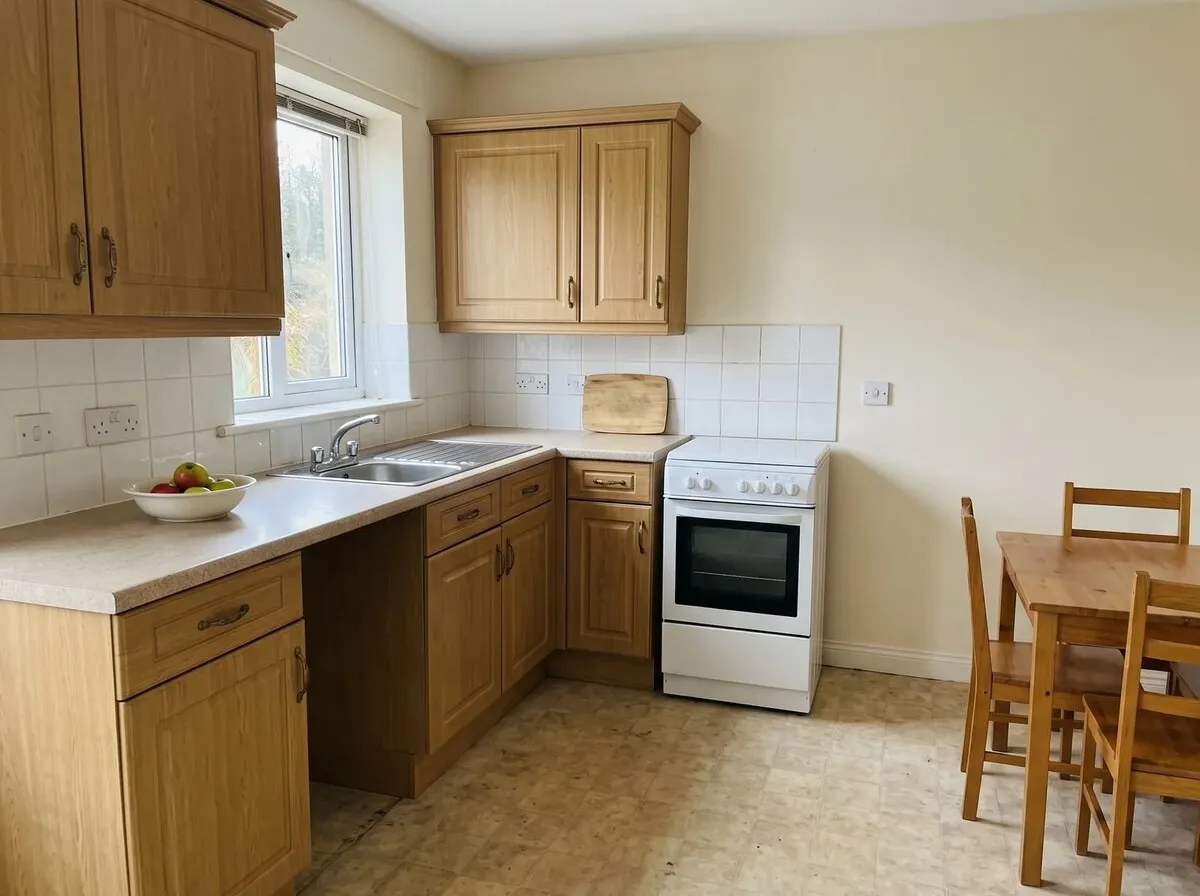
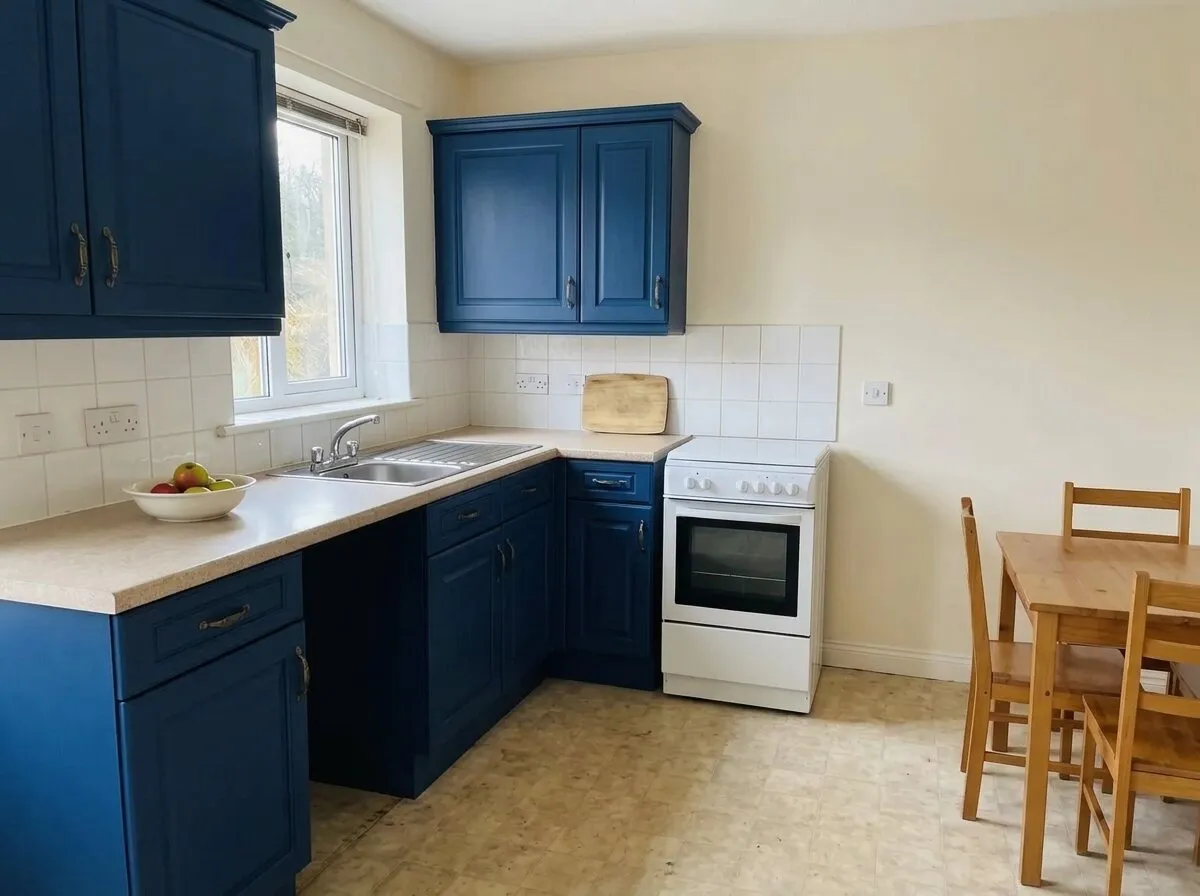
Custom edit, “Paint the kitchen cabinets navy blue”: only the cabinets changed.
Before: an AI-generated sample room from the app. After: the result from roomvia.
A checklist you can print
| Check | App A | App B | App C |
|---|---|---|---|
| Windows and doors stayed in place | |||
| Has the job I need | |||
| Typed requests work | |||
| Free designs: how many, watermark? | |||
| Sign-up needed to start? | |||
| Plans: weekly / yearly / monthly / packs | |||
| Price shown before buying | |||
| Names who processes my photo | |||
| Keeps photos for how long | |||
| Public feed or gallery | |||
| Delete account in the app | |||
| HD export | |||
| Before/after compare | |||
| Ads | |||
| iPhone / Android / web |
What no AI room design app can do
- It shows a picture, not a plan. No measurements, no structural or electrical advice.
- It can misplace or turn objects. Check that seats and screens face the right way.
- Screen colors aren’t paint colors. Test a real sample on the wall.
- Results vary. Two tries on the same photo give two different designs.
Where roomvia fits, and where it doesn’t
roomvia fits if you want to:
- restyle the room you have, not a different one. Keep mode is built to hold your walls, windows, doors and camera angle;
- do many jobs in one app: restyle a room, house or garden; furnish an empty room or empty a furnished one; rearrange your own furniture; clear the clutter; change walls and floors; type any change; decorate for an occasion;
- keep refining: every tool also works on an earlier design;
- start without signing up, with no ads and no public feed;
- know where your photo goes: before your first design, the app names the AI providers that process it and asks for your OK. Photos and designs are deleted 90 days after a design is made.
roomvia doesn’t fit if you need:
- to design on a computer: there is no web editor today. roomvia runs on iPhone and Android;
- floor plans, 3D models or measurements;
- a shopping list: roomvia shows a picture, not products to buy;
- batches of listing photos or team accounts;
- a built-in “Virtually staged” label on exports: there isn’t one today;
- free, unmarked images: free designs carry a watermark, and some styles are Pro only.