

How it works
- Add a photo of the room. Stand in a corner and fit in as much of the room as you can. No photo handy? Start with a sample room.
- Pick the room type. Add a wish if you like: one short sentence about the layout you want, such as “Put the TV on the left wall”.
- See the new layout. Compare before and after with the slider. Run it again for a different layout. Or keep going with another tool: repaint the walls, change the floor or type any change.
Examples: the same pieces, new layouts
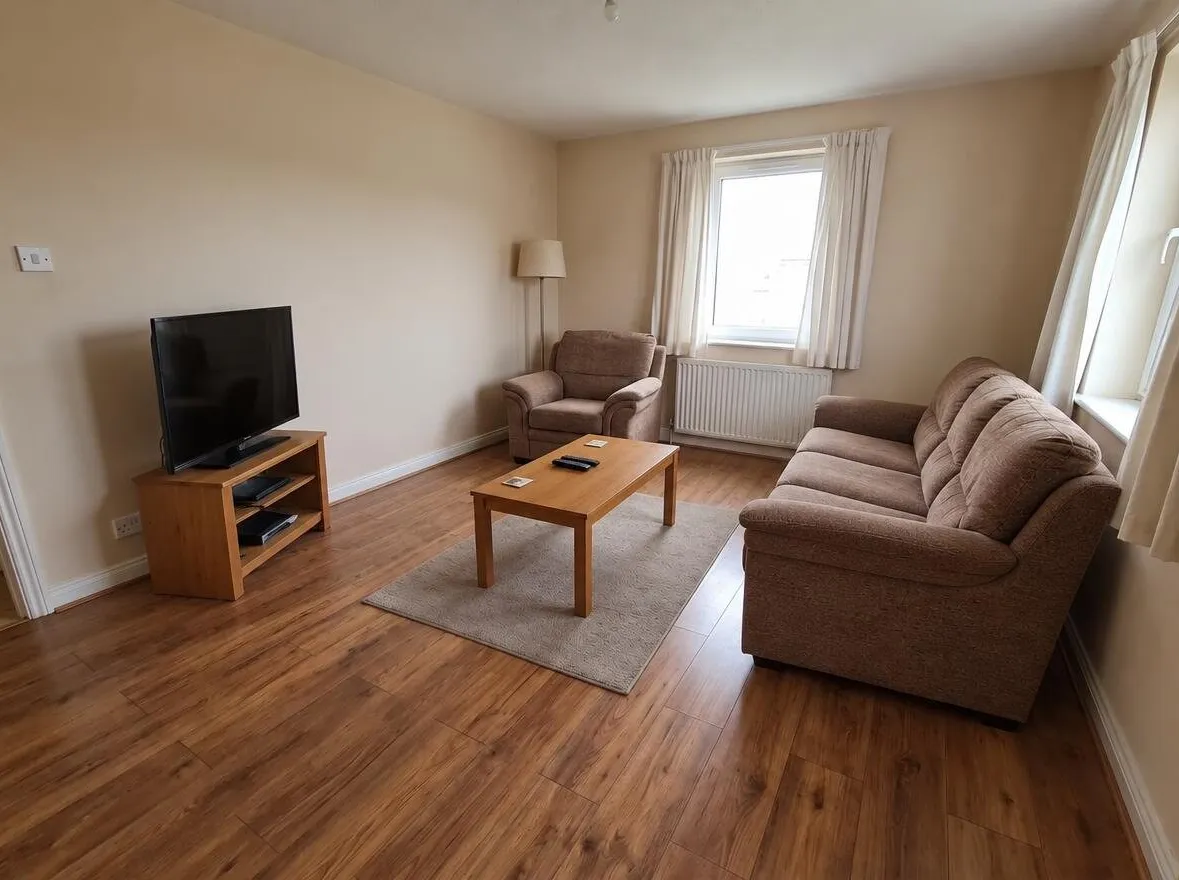
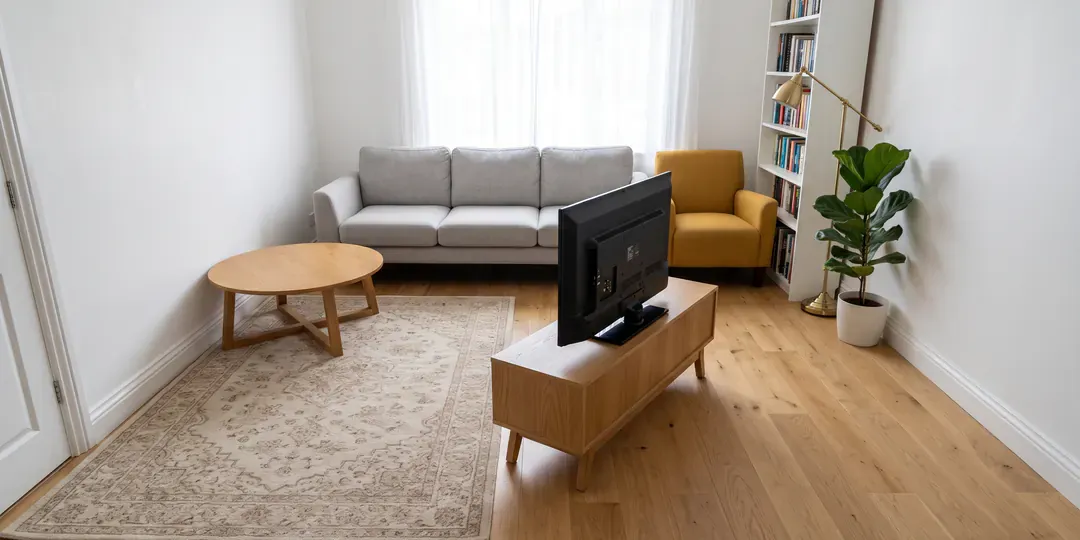
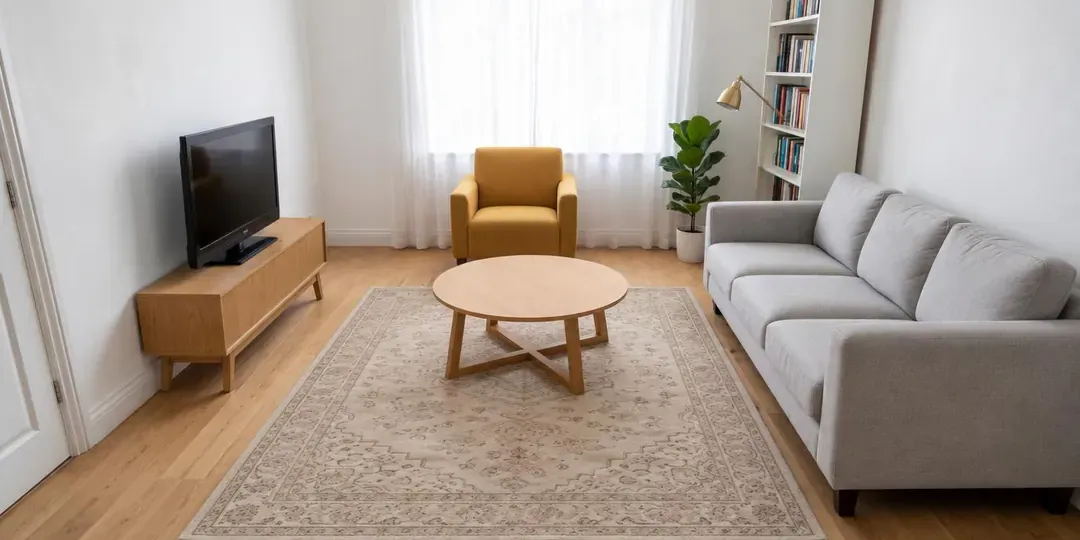
Rearrange furniture with the wish “Put the TV on the left wall”: the TV moved to the left wall, facing the sofa.
Before: an AI-generated sample room from the app. After: the result from roomvia.
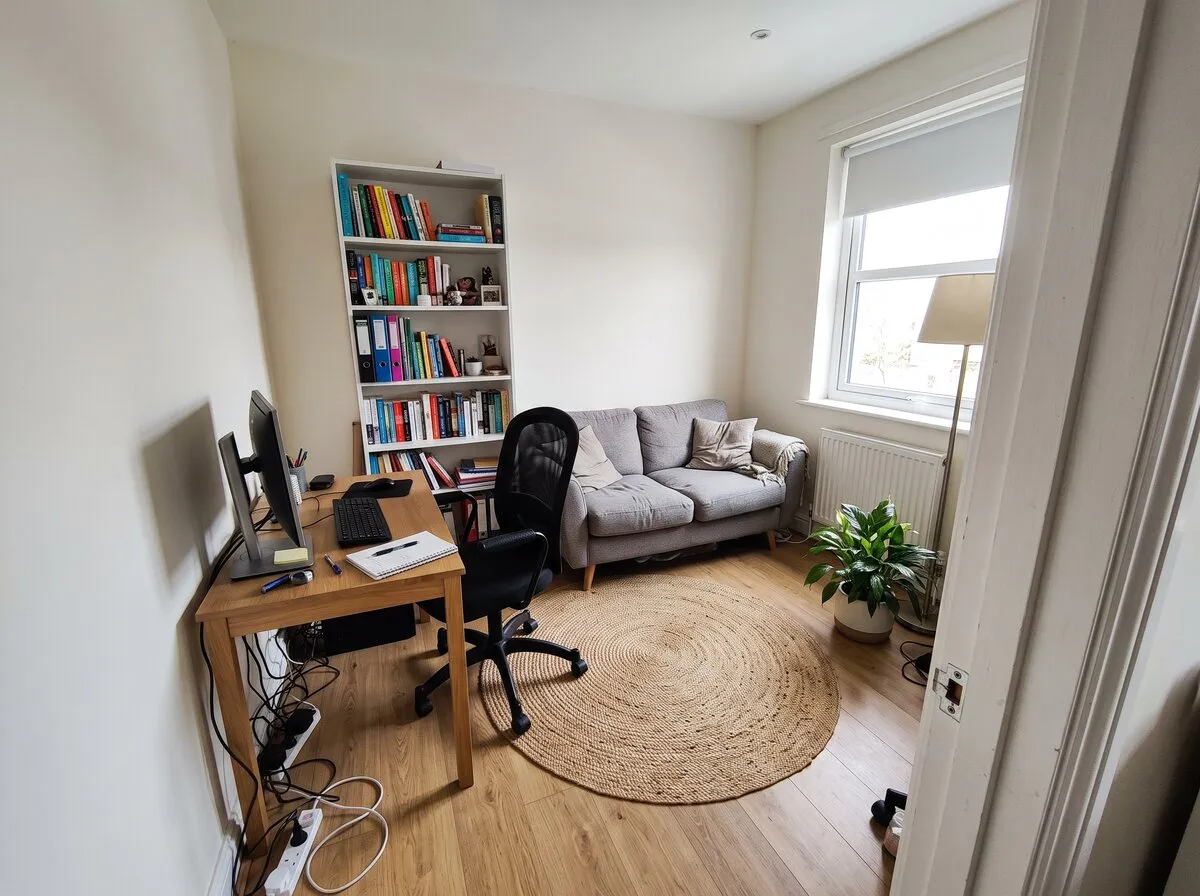
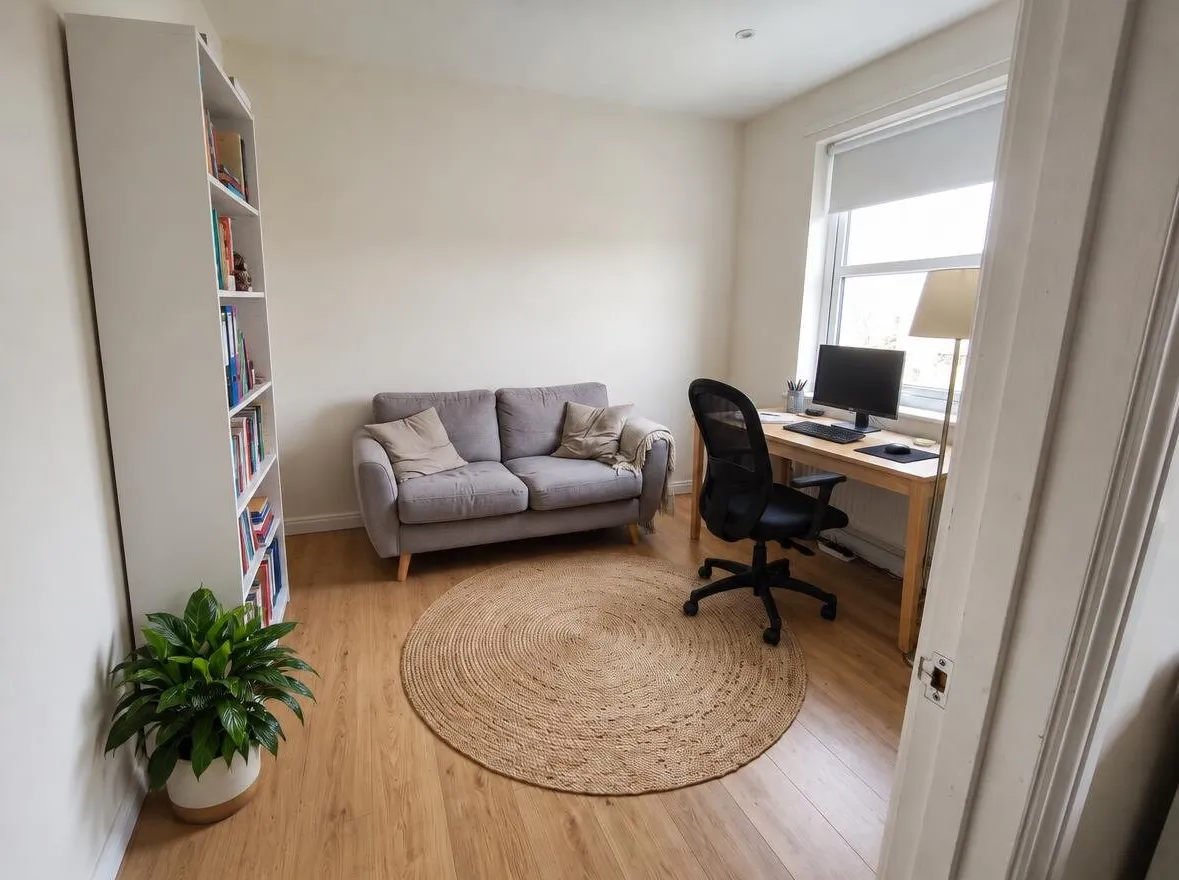
Rearrange furniture with the wish “Put the desk under the window”: the desk moved under the window; the bookcase and sofa moved too.
Before: an AI-generated sample room. After: the result from roomvia.
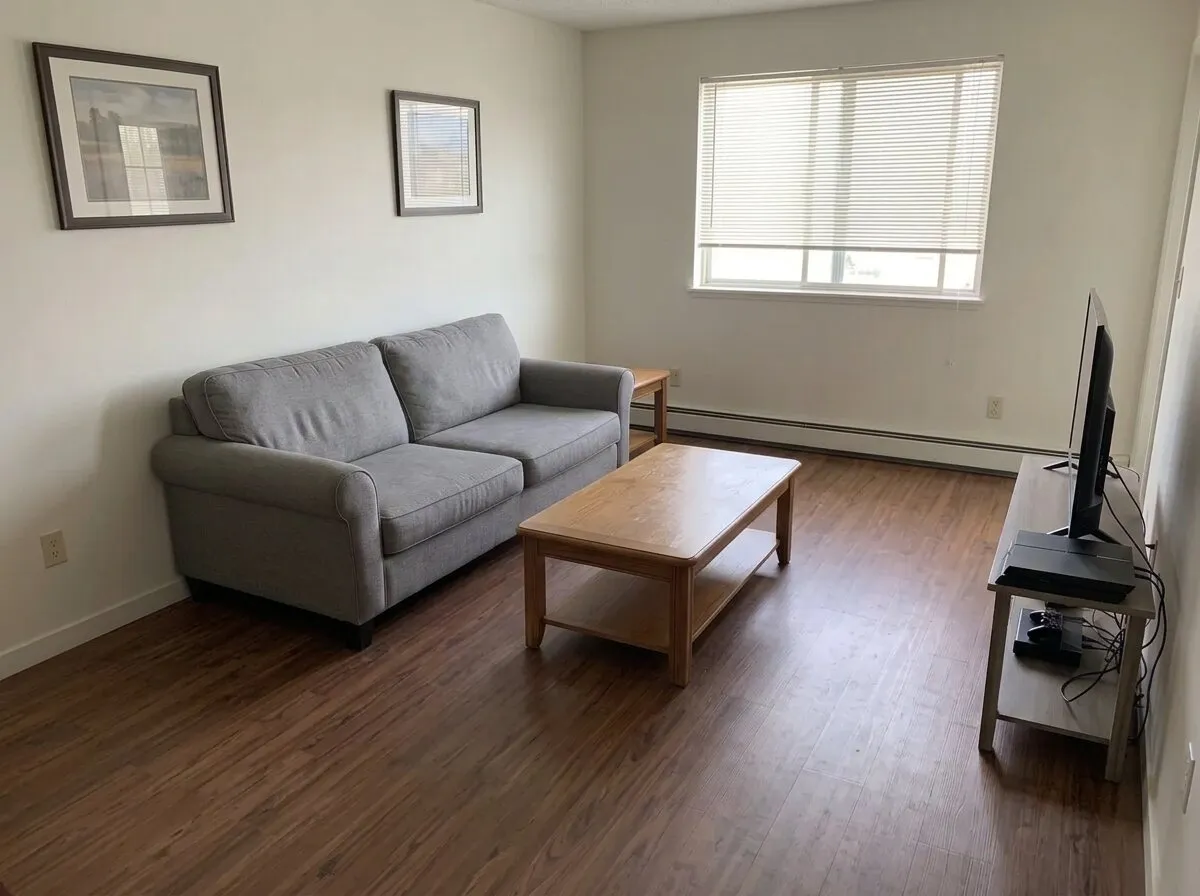
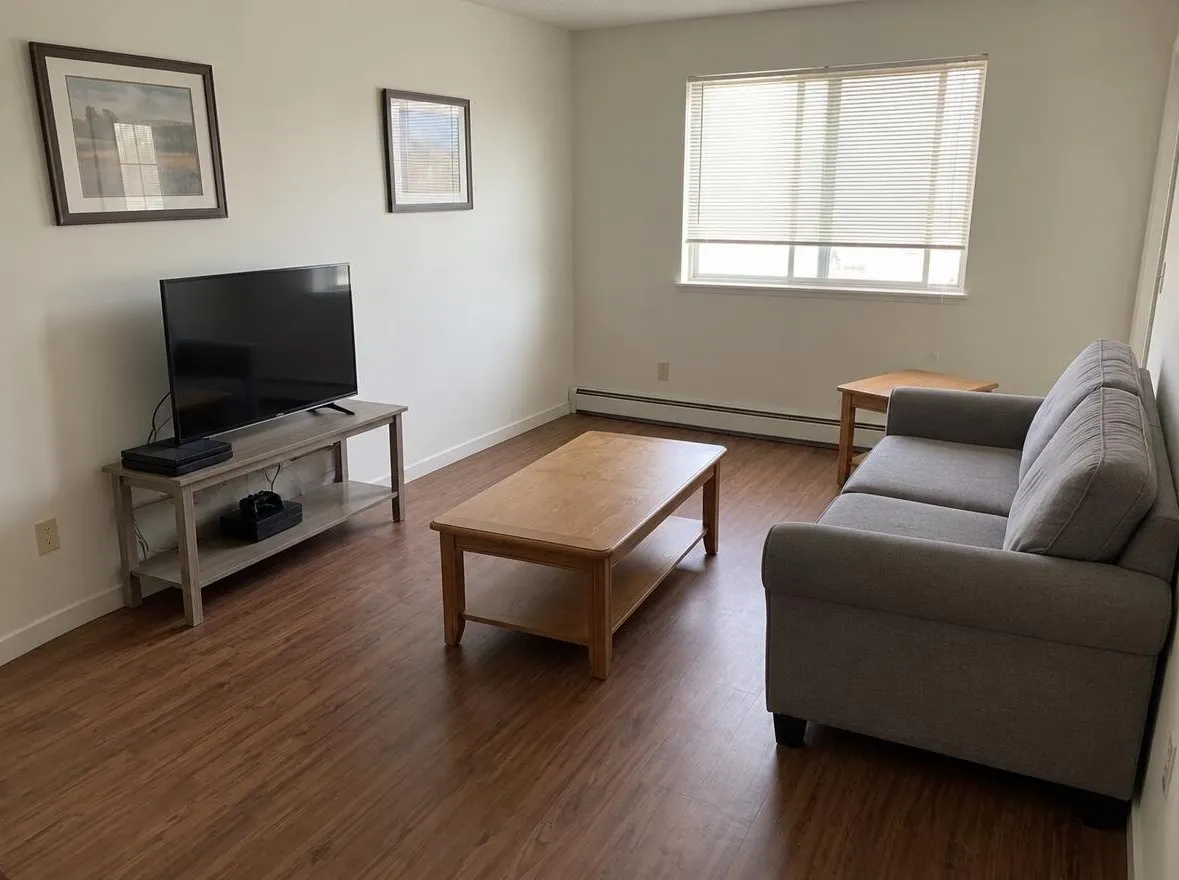
Rearrange furniture after Auto declutter: the TV stand moved to the left wall, facing the sofa.
Before: an AI-generated sample room. After: the result from roomvia.
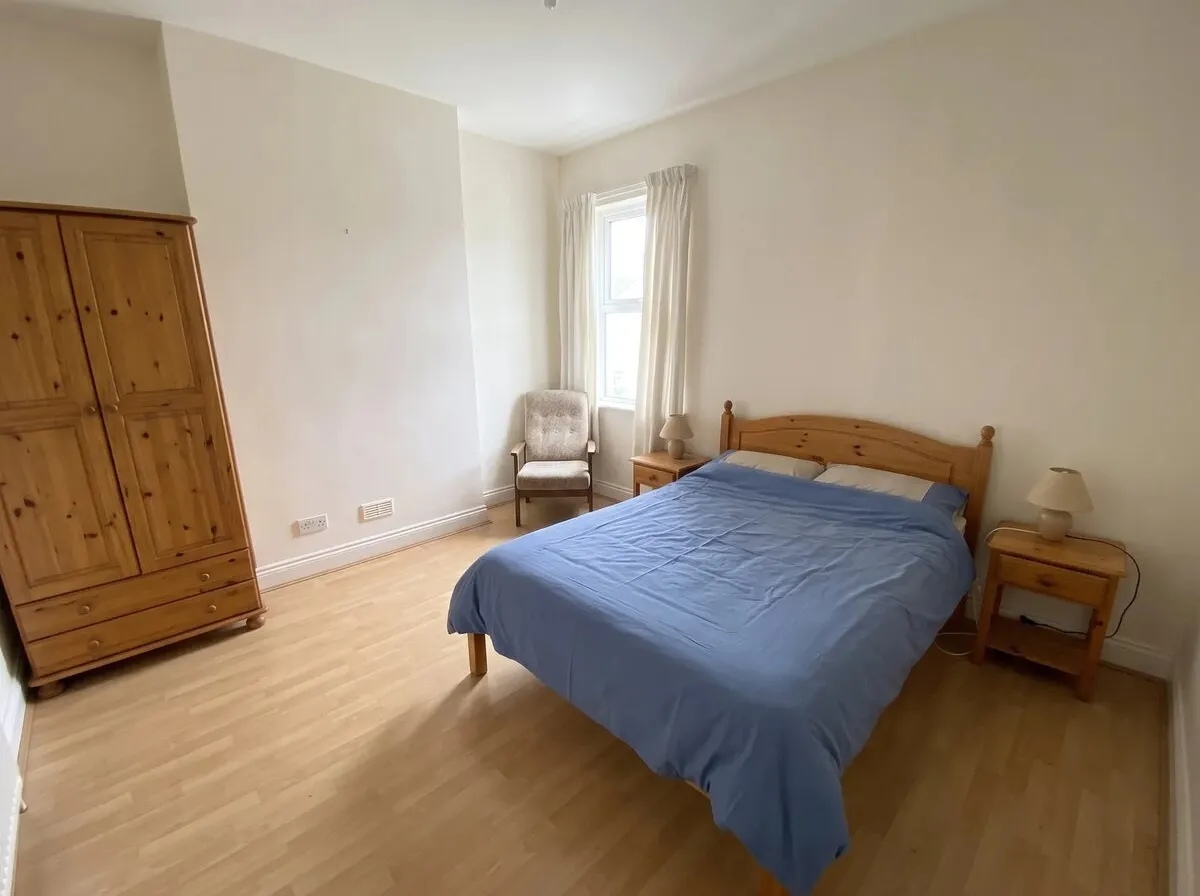
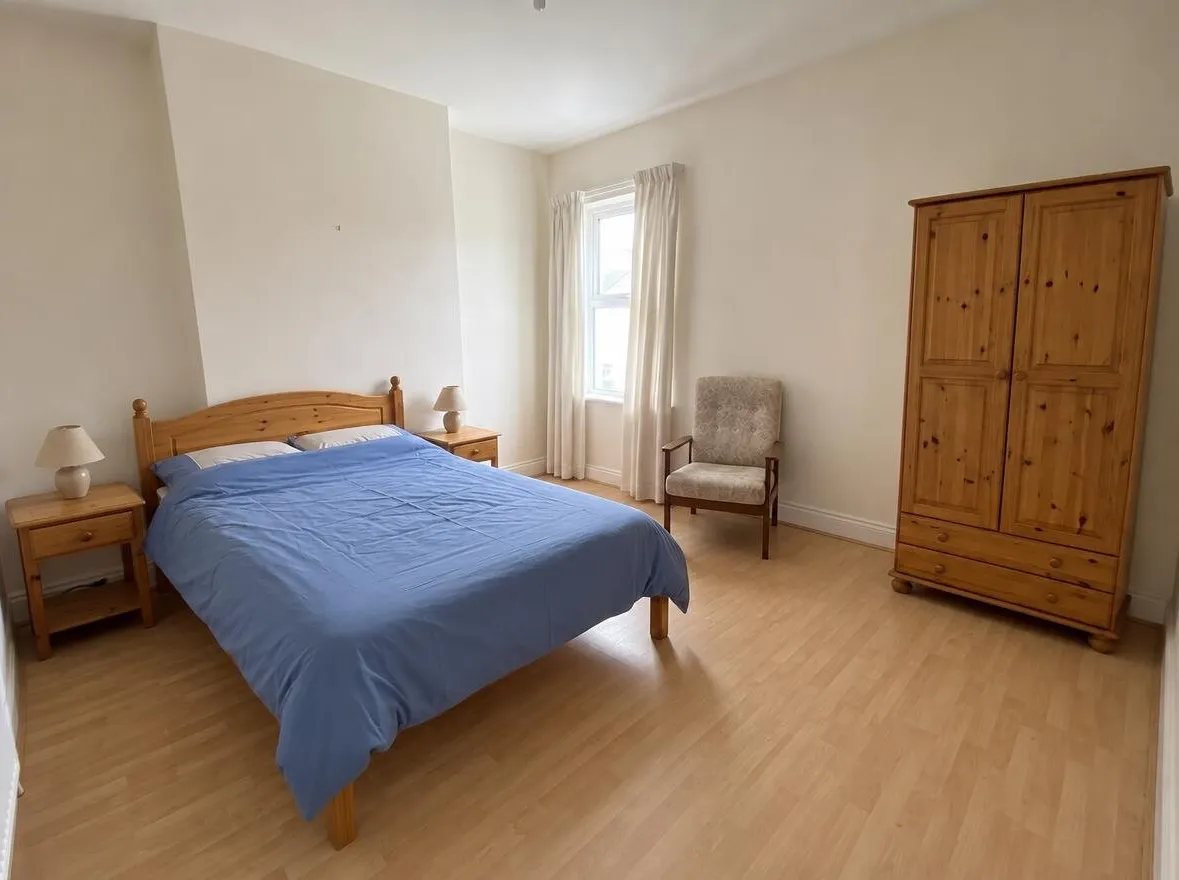
Rearrange furniture, no wish: the bed, wardrobe and armchair moved to new walls; the window stays where it was.
Before: an AI-generated sample room from the app. After: the result from roomvia.
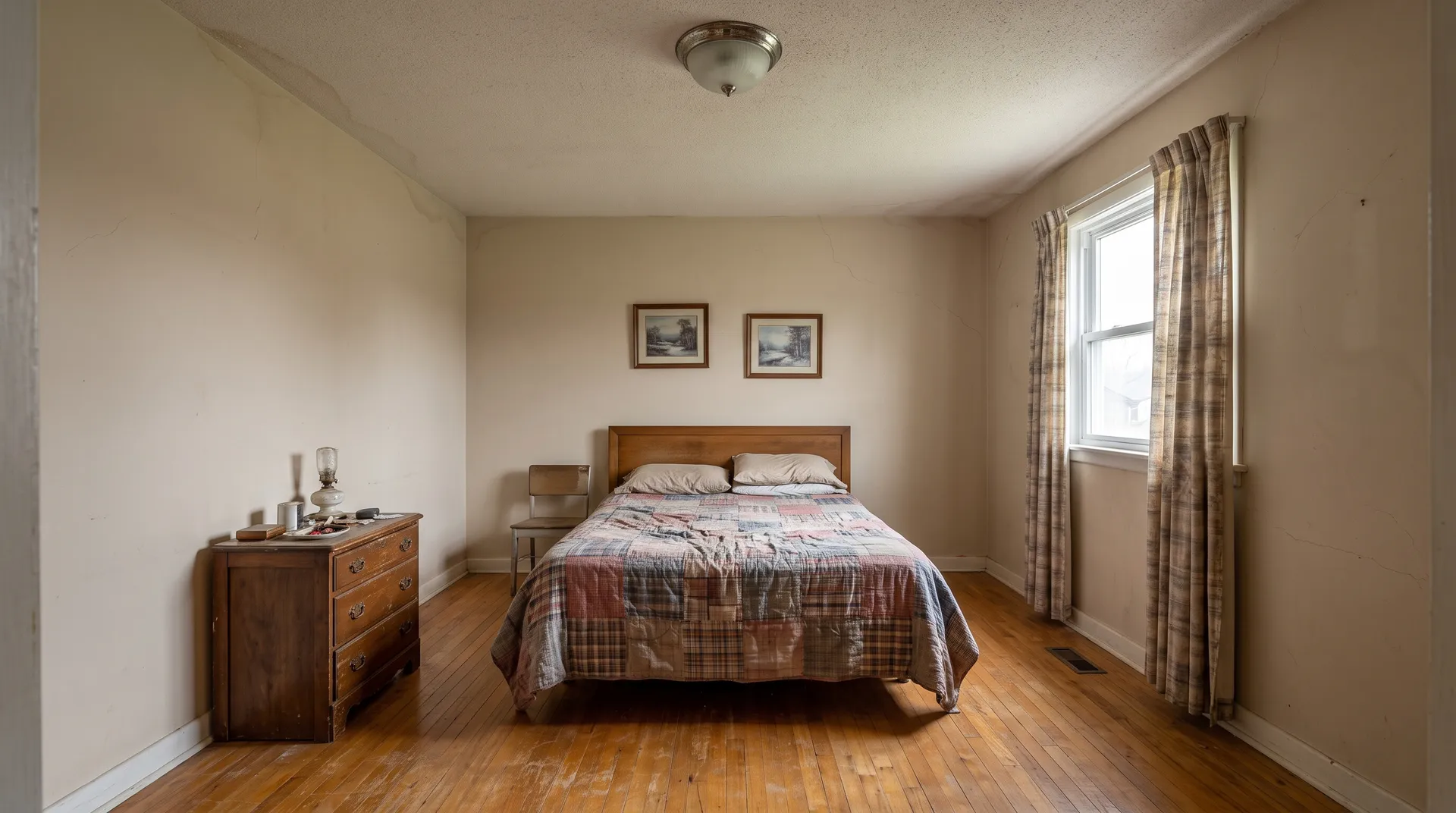
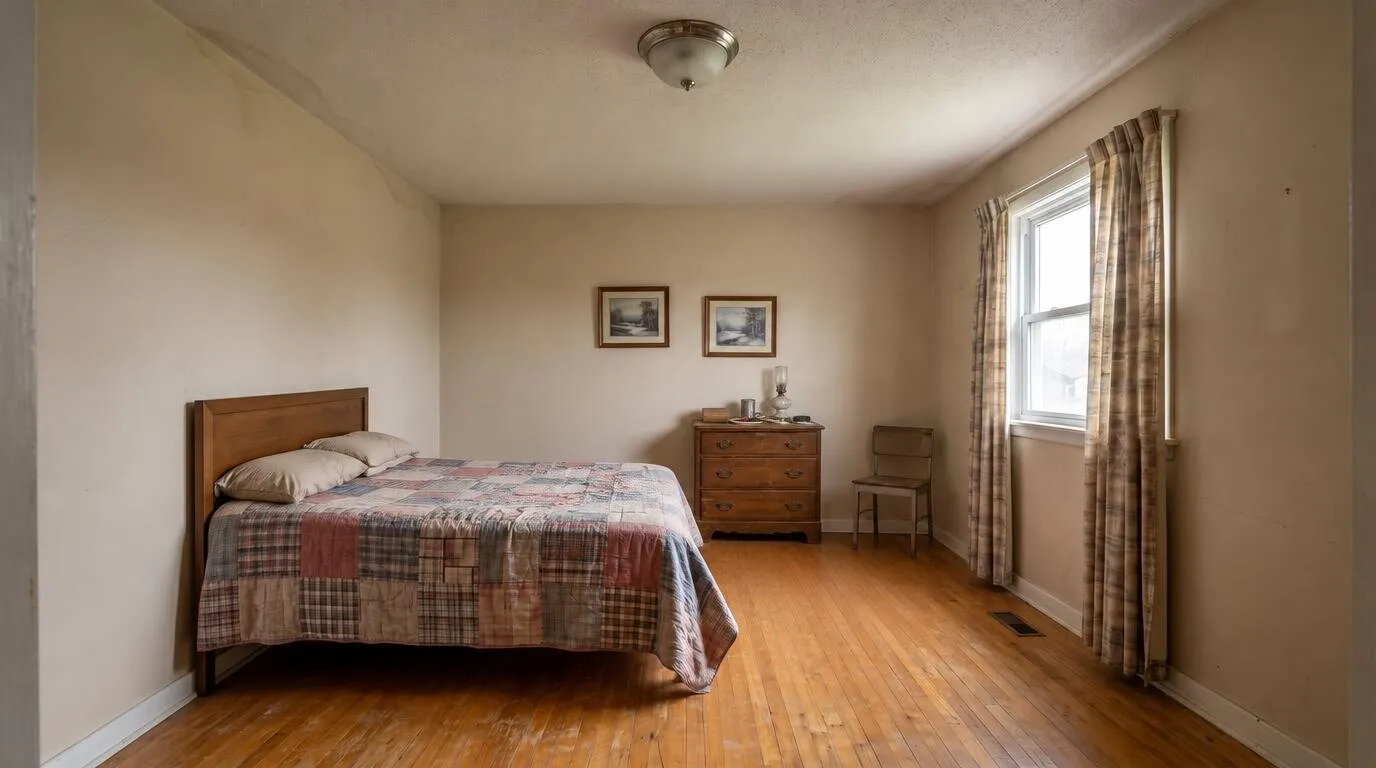
Rearrange furniture, no wish: the bed moved to the left wall, the chest of drawers and chair to the back wall.
Before: an AI-generated sample room. After: the result from roomvia.
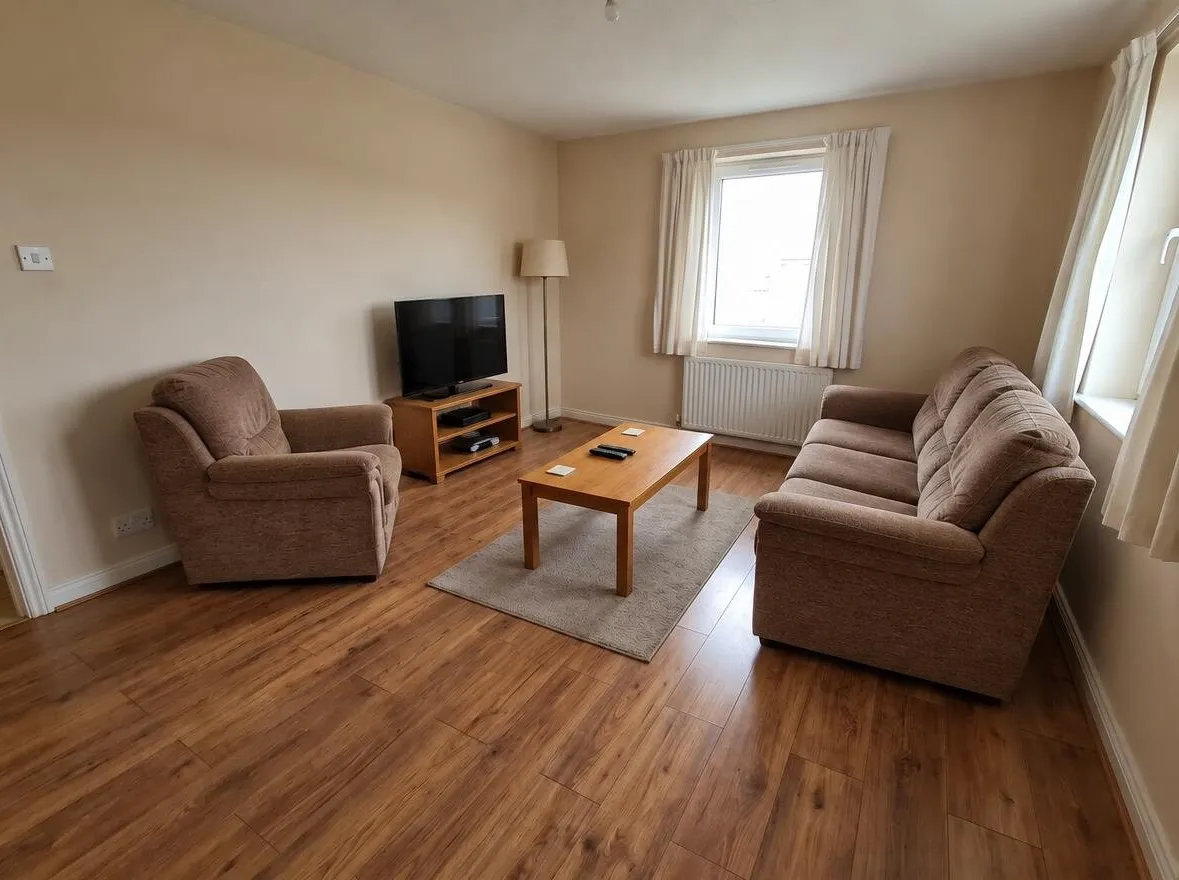
Rearrange furniture, no wish: the sofa, armchair and TV moved to new places around the same coffee table and rug.
Before: an AI-generated sample room from the app. After: the result from roomvia.
Tips for better layouts
- Show the whole room. The tool can only move what the photo shows. A wide shot from a corner works best.
- Clear the clutter first. If the floor is covered, run Auto declutter, then rearrange that design.
- Keep the wish short and specific. Name the piece and the place: “the armchair”, “the left wall”, “under the window”.
- Say which way things face. “TV on the left wall, facing the sofa” leaves less to chance.
- Run it a few times. Each run gives one layout. Different runs give different ideas.
- Measure before you move. The picture doesn’t know your room’s size. Check that the sofa fits the wall and that doors and drawers still open.
What it can’t do
- It can put a piece in the wrong place, or turn it the wrong way. Check that the TV screen faces the seats, that sofas and chairs face into the room, and that the desk chair is at the desk. If something faces a wall, run it again or say in your wish which way it should face.
- It can’t measure. A layout that looks fine in the picture may not fit in real life. Measure walls, walkways and door swings first.
- It can lose or change a piece. Count your furniture in the result. A small piece, like a mirror leaning on the floor, can vanish, or a piece can come back in a different shape. If that happens, run it again.
- It doesn’t add or swap furniture. To try a new sofa, use Replace object. To add a lamp or a rug, use Custom edit.
- It can only move what it can see. A piece cut off at the edge of the photo, or hidden behind another, may come out wrong.
- Your room should stay your room. Windows, doors, radiators and the fireplace are meant to stay put. If one of them moved, the design isn’t your room. Run it again.
- Results vary. Two runs on the same photo give two different layouts.
- It’s a picture, not a floor plan.
Questions
Does it add new furniture?
No. It is built to use only the pieces in your photo. To add something, use Custom edit or Replace object on the new design.
Can I tell it where to put things?
Yes. Add a wish, like “Put the desk under the window”. The wish is optional.
Will my walls and windows stay the same?
The tool is built to keep your walls, windows, doors and camera angle. Check the result. If something moved, run it again.
Which rooms does it work for?
Rooms inside your home: living rooms, bedrooms, home offices, dining rooms and more. You pick the room type before you start.
Can I rearrange a design I already made?
Yes. Every tool also works on an earlier design, so you can restyle a room and then try a new layout for it.
Is it free?
No sign-up is needed to start. New accounts may get a few free designs, which carry a watermark. Plans and prices are shown in the app before you buy.
What happens to my photo?
Before your first design, the app names the AI providers that process your photo and asks for your OK. Photos and designs are deleted 90 days after a design is made; reusing a design keeps it longer. There is no public feed.
Can I use it on my computer?
No. roomvia runs on iPhone and Android. There is no web editor today.